> ## Documentation Index
> Fetch the complete documentation index at: https://docs-dev-chore-actions-triggers-autoupdate.mintlify.site/llms.txt
> Use this file to discover all available pages before exploring further.

> Forms for Actions を使用してプログレッシブプロファイルフォームを設定する方法を学びます

# ユースケース: Forms を使用してプログレッシブプロファイルフォームを設定する

<Card title="開始前に">
  1. 次のスコープを有効にした [Machine-to-Machine Application](/docs/ja-jp/get-started/auth0-overview/create-applications/machine-to-machine-apps) を作成します。

  * `read:users`
  * `update:users`
  * `create:users`
  * `read:users_app_metadata`
  * `update:users_app_metadata`
  * `create:users_app_metadata`

  2. M2M アプリケーションの認証情報を使用して [Vault 接続](/docs/ja-jp/customize/forms/vault) を追加します。
</Card>

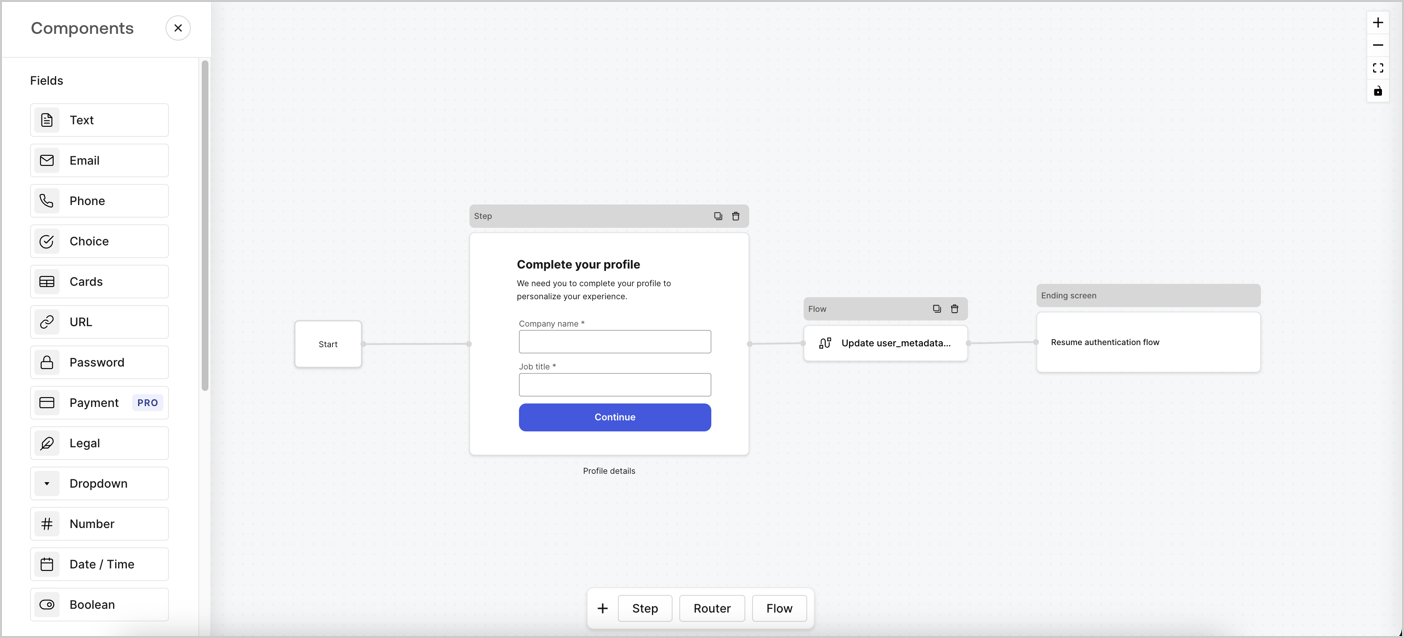
Forms for Actions では、会社名や役職などの不足している情報を収集するために、どのタイミングでユーザーに入力を促すかを判断するプログレッシブプロファイリングフローを作成し、それらを `user_metadata` 属性として保存できます。
<Frame>
  <img src="https://mintcdn.com/docs-dev-chore-actions-triggers-autoupdate/F6_aLWfReRksrE7h/docs/images/cdy7uua7fh8z/xUx9YmnHvnAqL19JvNtNP/60dae88f893d4ebe8e3523421e960596/Progressive-profle-overview.png?fit=max&auto=format&n=F6_aLWfReRksrE7h&q=85&s=244d0713c6aec07b5576e0215d2d5454" alt="Dashboard > Actions > Forms > Form" data-og-width="1404" width="1404" data-og-height="638" height="638" data-path="docs/images/cdy7uua7fh8z/xUx9YmnHvnAqL19JvNtNP/60dae88f893d4ebe8e3523421e960596/Progressive-profle-overview.png" data-optimize="true" data-opv="3" srcset="https://mintcdn.com/docs-dev-chore-actions-triggers-autoupdate/F6_aLWfReRksrE7h/docs/images/cdy7uua7fh8z/xUx9YmnHvnAqL19JvNtNP/60dae88f893d4ebe8e3523421e960596/Progressive-profle-overview.png?w=280&fit=max&auto=format&n=F6_aLWfReRksrE7h&q=85&s=4e0f88a73c9264d7457a699293b4c954 280w, https://mintcdn.com/docs-dev-chore-actions-triggers-autoupdate/F6_aLWfReRksrE7h/docs/images/cdy7uua7fh8z/xUx9YmnHvnAqL19JvNtNP/60dae88f893d4ebe8e3523421e960596/Progressive-profle-overview.png?w=560&fit=max&auto=format&n=F6_aLWfReRksrE7h&q=85&s=d51ee26b55dd5fd3a90f9465a642deb1 560w, https://mintcdn.com/docs-dev-chore-actions-triggers-autoupdate/F6_aLWfReRksrE7h/docs/images/cdy7uua7fh8z/xUx9YmnHvnAqL19JvNtNP/60dae88f893d4ebe8e3523421e960596/Progressive-profle-overview.png?w=840&fit=max&auto=format&n=F6_aLWfReRksrE7h&q=85&s=8f73027b9225c0803196f8e974b885b0 840w, https://mintcdn.com/docs-dev-chore-actions-triggers-autoupdate/F6_aLWfReRksrE7h/docs/images/cdy7uua7fh8z/xUx9YmnHvnAqL19JvNtNP/60dae88f893d4ebe8e3523421e960596/Progressive-profle-overview.png?w=1100&fit=max&auto=format&n=F6_aLWfReRksrE7h&q=85&s=8fbe6d788e6c932ed6d0195fb146e93e 1100w, https://mintcdn.com/docs-dev-chore-actions-triggers-autoupdate/F6_aLWfReRksrE7h/docs/images/cdy7uua7fh8z/xUx9YmnHvnAqL19JvNtNP/60dae88f893d4ebe8e3523421e960596/Progressive-profle-overview.png?w=1650&fit=max&auto=format&n=F6_aLWfReRksrE7h&q=85&s=d491a079571d8a8ff549ae15db7a7aaa 1650w, https://mintcdn.com/docs-dev-chore-actions-triggers-autoupdate/F6_aLWfReRksrE7h/docs/images/cdy7uua7fh8z/xUx9YmnHvnAqL19JvNtNP/60dae88f893d4ebe8e3523421e960596/Progressive-profle-overview.png?w=2500&fit=max&auto=format&n=F6_aLWfReRksrE7h&q=85&s=6775f6cc670baec0c3d05c06ff3ffba1 2500w" />
</Frame>

以下のセクションでは、ノードとフローを使用してプログレッシブプロファイルフォームを作成する方法と、そのフォームを [Post Login Action](/docs/ja-jp/customize/actions/explore-triggers/signup-and-login-triggers/login-trigger) に追加する手順について説明します。

<h2 id="create-a-form-from-scratch">
  一からフォームを作成する
</h2>

情報を収集するフォームを作成するには、次の手順に従います。

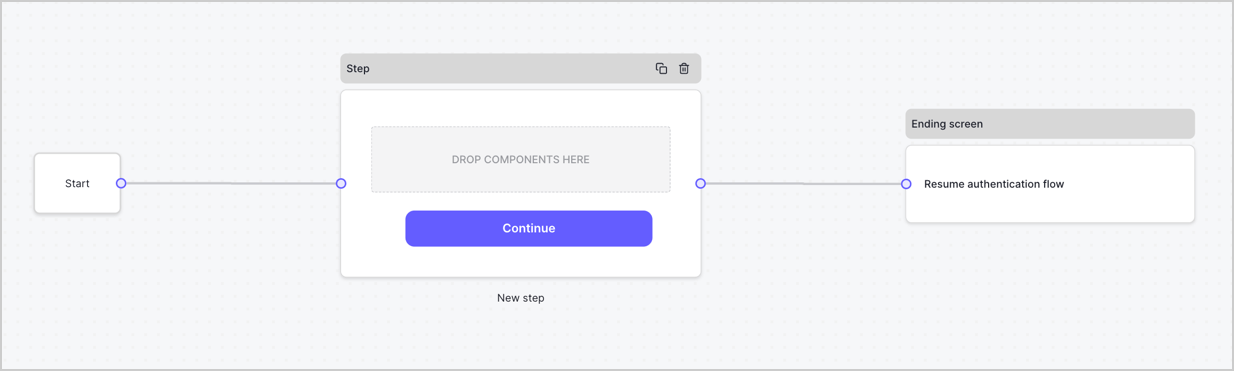
1. **Auth0 Dashboard > Actions > Forms** を選択して、フォームエディターを開きます。
2. **Create Form** > **Start from scratch** を選択します。

デフォルトでは、新しいフォームには Start ノード、Step ノード、Ending screen ノードが含まれています。
<Frame>
  <img src="https://mintcdn.com/docs-dev-chore-actions-triggers-autoupdate/khsGGGmvn88p2r99/docs/images/cdy7uua7fh8z/2TZ9jSjgEcARFpULI6hz4R/a4319a1bd482f2ee5cc23100fdb2f42c/New-form-Forms-for-action-use-case.png?fit=max&auto=format&n=khsGGGmvn88p2r99&q=85&s=f1dbf58e4566a5357d594dcaf959bd81" alt="Dashboard > Forms > Use Cases > Form" data-og-width="1234" width="1234" data-og-height="371" height="371" data-path="docs/images/cdy7uua7fh8z/2TZ9jSjgEcARFpULI6hz4R/a4319a1bd482f2ee5cc23100fdb2f42c/New-form-Forms-for-action-use-case.png" data-optimize="true" data-opv="3" srcset="https://mintcdn.com/docs-dev-chore-actions-triggers-autoupdate/khsGGGmvn88p2r99/docs/images/cdy7uua7fh8z/2TZ9jSjgEcARFpULI6hz4R/a4319a1bd482f2ee5cc23100fdb2f42c/New-form-Forms-for-action-use-case.png?w=280&fit=max&auto=format&n=khsGGGmvn88p2r99&q=85&s=4d90bdcaf4dcc6e9387e45af26cf5d3a 280w, https://mintcdn.com/docs-dev-chore-actions-triggers-autoupdate/khsGGGmvn88p2r99/docs/images/cdy7uua7fh8z/2TZ9jSjgEcARFpULI6hz4R/a4319a1bd482f2ee5cc23100fdb2f42c/New-form-Forms-for-action-use-case.png?w=560&fit=max&auto=format&n=khsGGGmvn88p2r99&q=85&s=6cb05b196f2fac0ea170614da0e7a363 560w, https://mintcdn.com/docs-dev-chore-actions-triggers-autoupdate/khsGGGmvn88p2r99/docs/images/cdy7uua7fh8z/2TZ9jSjgEcARFpULI6hz4R/a4319a1bd482f2ee5cc23100fdb2f42c/New-form-Forms-for-action-use-case.png?w=840&fit=max&auto=format&n=khsGGGmvn88p2r99&q=85&s=6cdc16bf26629ecfecbec7b9e9941fa3 840w, https://mintcdn.com/docs-dev-chore-actions-triggers-autoupdate/khsGGGmvn88p2r99/docs/images/cdy7uua7fh8z/2TZ9jSjgEcARFpULI6hz4R/a4319a1bd482f2ee5cc23100fdb2f42c/New-form-Forms-for-action-use-case.png?w=1100&fit=max&auto=format&n=khsGGGmvn88p2r99&q=85&s=87d1315d87789acd3eac975e111504eb 1100w, https://mintcdn.com/docs-dev-chore-actions-triggers-autoupdate/khsGGGmvn88p2r99/docs/images/cdy7uua7fh8z/2TZ9jSjgEcARFpULI6hz4R/a4319a1bd482f2ee5cc23100fdb2f42c/New-form-Forms-for-action-use-case.png?w=1650&fit=max&auto=format&n=khsGGGmvn88p2r99&q=85&s=f933b4a6086fa8588140adbd3e9393cb 1650w, https://mintcdn.com/docs-dev-chore-actions-triggers-autoupdate/khsGGGmvn88p2r99/docs/images/cdy7uua7fh8z/2TZ9jSjgEcARFpULI6hz4R/a4319a1bd482f2ee5cc23100fdb2f42c/New-form-Forms-for-action-use-case.png?w=2500&fit=max&auto=format&n=khsGGGmvn88p2r99&q=85&s=39a6cae92f72c55d09bd854a11133255 2500w" />
</Frame>

<h3 id="configure-the-step-node">
  Step ノードを設定する
</h3>

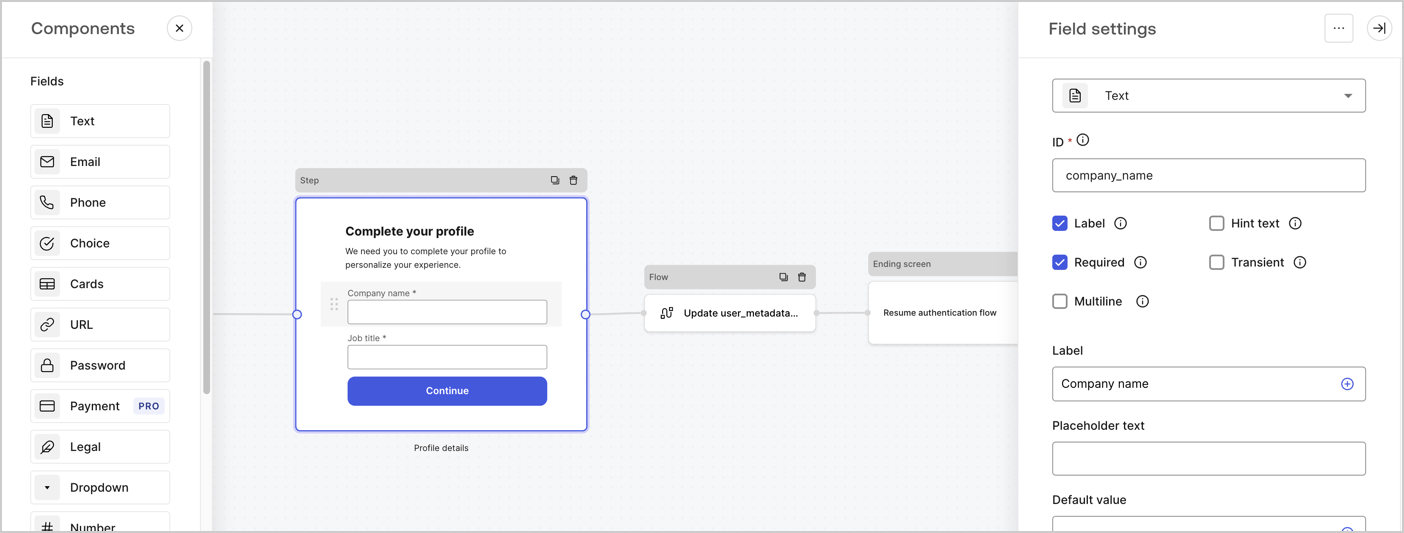
Step ノードは、ユーザーに表示されるグラフィカルインターフェースです。以下の手順に従って Step ノードに [Fields](/docs/ja-jp/customize/forms/nodes-and-components) を追加し、ユーザーの会社名と役職を収集します。

1. **Components menu** から **Rich text** フィールドを **Step** ノードにドラッグします。

   * **Rich text**: カスタムメッセージを入力します。

     * **例**: `Complete your profile! We need you to complete your profile to personalize your experience.`
   * **Save** を選択します。
2. **Text** フィールドを **Step** ノードにドラッグします。

   * **ID**: `company_name` を入力します。
   * **Label**: チェックボックスをオンにします。
   * **Label**: `Company name` を入力します。
   * **Required**: チェックボックスをオンにします。
   * **Save** を選択します。
3. **Text** フィールドを **Step** ノードにドラッグします。

   1. **ID**: `job_title` を入力します。
   2. **Label**: `Job title` を入力します。
   3. **Label**: チェックボックスをオンにします。
   4. **Required**: チェックボックスをオンにします。
   5. **Save** を選択します。
4. 保存するには、**Publish** を選択します。
<Frame>
  <img src="https://mintcdn.com/docs-dev-chore-actions-triggers-autoupdate/JeCjEaTFYoe6VDKn/docs/images/cdy7uua7fh8z/6H1lRzwKyYioQyQJ9MtIoM/aa248e92fc028a68a5b92ff361a11644/progressive-profile-step.png?fit=max&auto=format&n=JeCjEaTFYoe6VDKn&q=85&s=7713a121ba9a9a7063c85063f5df37cd" alt="Dashboard > Actions > Forms > Form > Step node" data-og-width="1404" width="1404" data-og-height="533" height="533" data-path="docs/images/cdy7uua7fh8z/6H1lRzwKyYioQyQJ9MtIoM/aa248e92fc028a68a5b92ff361a11644/progressive-profile-step.png" data-optimize="true" data-opv="3" srcset="https://mintcdn.com/docs-dev-chore-actions-triggers-autoupdate/JeCjEaTFYoe6VDKn/docs/images/cdy7uua7fh8z/6H1lRzwKyYioQyQJ9MtIoM/aa248e92fc028a68a5b92ff361a11644/progressive-profile-step.png?w=280&fit=max&auto=format&n=JeCjEaTFYoe6VDKn&q=85&s=c62ecb74db4860be9f97362efd6923aa 280w, https://mintcdn.com/docs-dev-chore-actions-triggers-autoupdate/JeCjEaTFYoe6VDKn/docs/images/cdy7uua7fh8z/6H1lRzwKyYioQyQJ9MtIoM/aa248e92fc028a68a5b92ff361a11644/progressive-profile-step.png?w=560&fit=max&auto=format&n=JeCjEaTFYoe6VDKn&q=85&s=a4362dcf89a2bdfff188dd2a144fd8f0 560w, https://mintcdn.com/docs-dev-chore-actions-triggers-autoupdate/JeCjEaTFYoe6VDKn/docs/images/cdy7uua7fh8z/6H1lRzwKyYioQyQJ9MtIoM/aa248e92fc028a68a5b92ff361a11644/progressive-profile-step.png?w=840&fit=max&auto=format&n=JeCjEaTFYoe6VDKn&q=85&s=a3d19f65f325e6f8a12237c9bb34f55d 840w, https://mintcdn.com/docs-dev-chore-actions-triggers-autoupdate/JeCjEaTFYoe6VDKn/docs/images/cdy7uua7fh8z/6H1lRzwKyYioQyQJ9MtIoM/aa248e92fc028a68a5b92ff361a11644/progressive-profile-step.png?w=1100&fit=max&auto=format&n=JeCjEaTFYoe6VDKn&q=85&s=dbe848752878778c97c4ba87860c906e 1100w, https://mintcdn.com/docs-dev-chore-actions-triggers-autoupdate/JeCjEaTFYoe6VDKn/docs/images/cdy7uua7fh8z/6H1lRzwKyYioQyQJ9MtIoM/aa248e92fc028a68a5b92ff361a11644/progressive-profile-step.png?w=1650&fit=max&auto=format&n=JeCjEaTFYoe6VDKn&q=85&s=8323b1236295f3d5ce4a3c043e102f7a 1650w, https://mintcdn.com/docs-dev-chore-actions-triggers-autoupdate/JeCjEaTFYoe6VDKn/docs/images/cdy7uua7fh8z/6H1lRzwKyYioQyQJ9MtIoM/aa248e92fc028a68a5b92ff361a11644/progressive-profile-step.png?w=2500&fit=max&auto=format&n=JeCjEaTFYoe6VDKn&q=85&s=b076a9b0056301cc4dcb1121b7697a7a 2500w" />
</Frame>

<h3 id="configure-the-flow-node">
  フローノードを設定する
</h3>

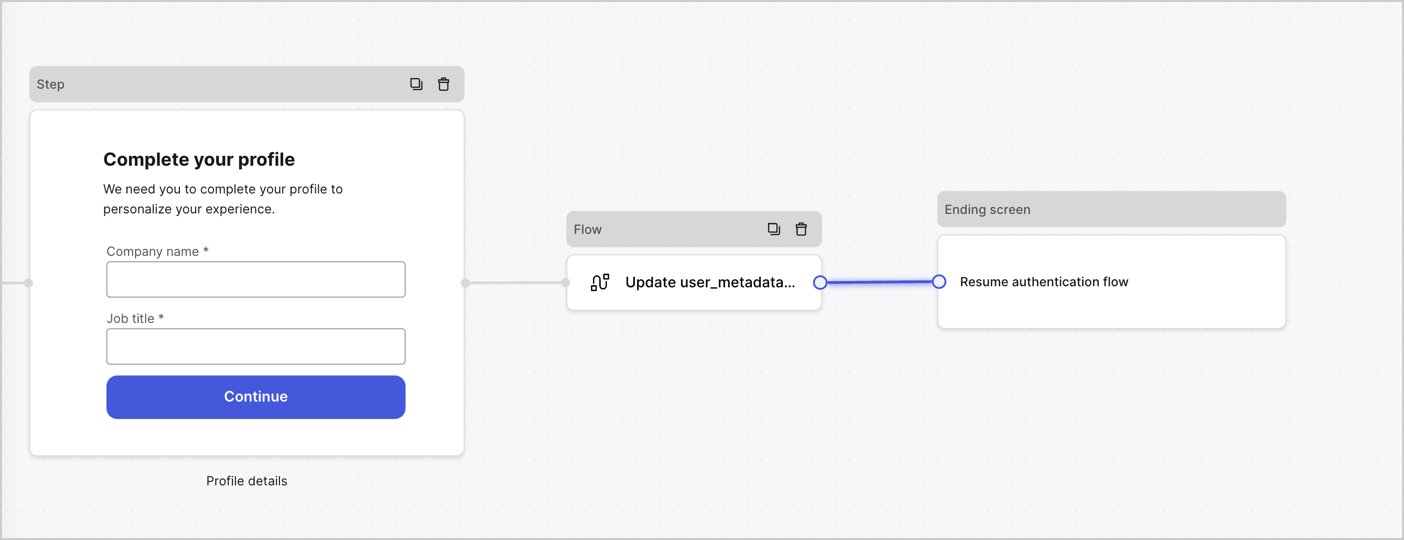
`user_metadata` を更新して認証フローを再開するために、**Step** ノードの後に **Flow** ノードを追加します。次の手順に従ってください。

1. フォームエディターの下部で **Flow** を選択します。
2. **Step** ノードと **Ending Screen** ノードの間にある既存のリンクを削除します。
3. 新しい **Flow** > **Click to add a flow** > **Create a new flow** を選択します。

   * **Name** フィールドに `Update user_metadata` と入力します。
   * **Create** を選択します。
   * **Save** を選択します。
4. 下図のように、**Flow** ノードを **Step** ノードと **Ending Screen** ノードに接続します。
5. 保存するには **Publish** を選択します。
<Frame>
  <img src="https://mintcdn.com/docs-dev-chore-actions-triggers-autoupdate/R5ivmkXd2l4BLNhc/docs/images/cdy7uua7fh8z/5C91DaWn4LGtJT9BF87ssu/095171d0c452a287c44bfde12fd6d13f/link-nodes.png?fit=max&auto=format&n=R5ivmkXd2l4BLNhc&q=85&s=9e13f3aba3e7ac46cedf5d787144961c" alt="Dashboard > Actions > Forms > Form" data-og-width="1404" width="1404" data-og-height="540" height="540" data-path="docs/images/cdy7uua7fh8z/5C91DaWn4LGtJT9BF87ssu/095171d0c452a287c44bfde12fd6d13f/link-nodes.png" data-optimize="true" data-opv="3" srcset="https://mintcdn.com/docs-dev-chore-actions-triggers-autoupdate/R5ivmkXd2l4BLNhc/docs/images/cdy7uua7fh8z/5C91DaWn4LGtJT9BF87ssu/095171d0c452a287c44bfde12fd6d13f/link-nodes.png?w=280&fit=max&auto=format&n=R5ivmkXd2l4BLNhc&q=85&s=72540e3880573b47c139b13167e99dc3 280w, https://mintcdn.com/docs-dev-chore-actions-triggers-autoupdate/R5ivmkXd2l4BLNhc/docs/images/cdy7uua7fh8z/5C91DaWn4LGtJT9BF87ssu/095171d0c452a287c44bfde12fd6d13f/link-nodes.png?w=560&fit=max&auto=format&n=R5ivmkXd2l4BLNhc&q=85&s=29bcc86dff8340a02202d05b4cd9d3d5 560w, https://mintcdn.com/docs-dev-chore-actions-triggers-autoupdate/R5ivmkXd2l4BLNhc/docs/images/cdy7uua7fh8z/5C91DaWn4LGtJT9BF87ssu/095171d0c452a287c44bfde12fd6d13f/link-nodes.png?w=840&fit=max&auto=format&n=R5ivmkXd2l4BLNhc&q=85&s=07a94b0cdaeb17ef256052cff5df3bbe 840w, https://mintcdn.com/docs-dev-chore-actions-triggers-autoupdate/R5ivmkXd2l4BLNhc/docs/images/cdy7uua7fh8z/5C91DaWn4LGtJT9BF87ssu/095171d0c452a287c44bfde12fd6d13f/link-nodes.png?w=1100&fit=max&auto=format&n=R5ivmkXd2l4BLNhc&q=85&s=ce80cc9a2e75394bf42743dbad093016 1100w, https://mintcdn.com/docs-dev-chore-actions-triggers-autoupdate/R5ivmkXd2l4BLNhc/docs/images/cdy7uua7fh8z/5C91DaWn4LGtJT9BF87ssu/095171d0c452a287c44bfde12fd6d13f/link-nodes.png?w=1650&fit=max&auto=format&n=R5ivmkXd2l4BLNhc&q=85&s=40f24cef65914869e0e0b323eff00cfa 1650w, https://mintcdn.com/docs-dev-chore-actions-triggers-autoupdate/R5ivmkXd2l4BLNhc/docs/images/cdy7uua7fh8z/5C91DaWn4LGtJT9BF87ssu/095171d0c452a287c44bfde12fd6d13f/link-nodes.png?w=2500&fit=max&auto=format&n=R5ivmkXd2l4BLNhc&q=85&s=ca459ad75a281a57e8c03487d11ce292 2500w" />
</Frame>

次の手順に従って、フローに Auth0 の Update user アクションを追加します。

1. **Update user\_metadata** フローを選択し、次に **Edit Flow** を選択して、新しいタブで Flow エディターを開きます。
2. **Start** アクションの下にある **+** アイコンを選択して **Update user** アクションを追加します。以下の項目を入力し、続けて **Save** を選択します。

   * **Connection**: ドロップダウンから、M2M アプリケーション用の Vault 接続を選択します。

   * **User ID**: `{{context.user.user_id}}` と入力します。

   * **Body**: 次のコードをコピー&ペーストして、`job_title` と `company_name` プロパティで `user_metadata` を更新します。

     ```json lines theme={null}
     {
        "user_metadata": {
           "job_title": "{{fields.job_title}}",
           "company_name": "{{fields.company_name}}"
        }
     }
     ```

   * **Save** を選択します。
3. 保存するには **Publish** を選択します。

<Frame>
  <img src="https://mintcdn.com/docs-dev-chore-actions-triggers-autoupdate/yqsbn6KFxIs62QZw/docs/images/cdy7uua7fh8z/65Jx4W5oIZJyyvA8z4HqIx/0661b1a8ca6361c54fc4fef07ba59f0b/update-user.png?fit=max&auto=format&n=yqsbn6KFxIs62QZw&q=85&s=b4b747b430298f43598bb79513af2814" alt="Dashboard > Actions > Forms > Flows" data-og-width="1404" width="1404" data-og-height="244" height="244" data-path="docs/images/cdy7uua7fh8z/65Jx4W5oIZJyyvA8z4HqIx/0661b1a8ca6361c54fc4fef07ba59f0b/update-user.png" data-optimize="true" data-opv="3" srcset="https://mintcdn.com/docs-dev-chore-actions-triggers-autoupdate/yqsbn6KFxIs62QZw/docs/images/cdy7uua7fh8z/65Jx4W5oIZJyyvA8z4HqIx/0661b1a8ca6361c54fc4fef07ba59f0b/update-user.png?w=280&fit=max&auto=format&n=yqsbn6KFxIs62QZw&q=85&s=7e5dea63a45018ebc9753fb24137270d 280w, https://mintcdn.com/docs-dev-chore-actions-triggers-autoupdate/yqsbn6KFxIs62QZw/docs/images/cdy7uua7fh8z/65Jx4W5oIZJyyvA8z4HqIx/0661b1a8ca6361c54fc4fef07ba59f0b/update-user.png?w=560&fit=max&auto=format&n=yqsbn6KFxIs62QZw&q=85&s=6f11d45e96d884b6a9b6158102c688fe 560w, https://mintcdn.com/docs-dev-chore-actions-triggers-autoupdate/yqsbn6KFxIs62QZw/docs/images/cdy7uua7fh8z/65Jx4W5oIZJyyvA8z4HqIx/0661b1a8ca6361c54fc4fef07ba59f0b/update-user.png?w=840&fit=max&auto=format&n=yqsbn6KFxIs62QZw&q=85&s=aef5dde747f2bda49415fff8a46655d9 840w, https://mintcdn.com/docs-dev-chore-actions-triggers-autoupdate/yqsbn6KFxIs62QZw/docs/images/cdy7uua7fh8z/65Jx4W5oIZJyyvA8z4HqIx/0661b1a8ca6361c54fc4fef07ba59f0b/update-user.png?w=1100&fit=max&auto=format&n=yqsbn6KFxIs62QZw&q=85&s=ce35e4078257a8f4983e2fd97ea98862 1100w, https://mintcdn.com/docs-dev-chore-actions-triggers-autoupdate/yqsbn6KFxIs62QZw/docs/images/cdy7uua7fh8z/65Jx4W5oIZJyyvA8z4HqIx/0661b1a8ca6361c54fc4fef07ba59f0b/update-user.png?w=1650&fit=max&auto=format&n=yqsbn6KFxIs62QZw&q=85&s=0a7b2ecb40c2a24e0f9eabf7831d498d 1650w, https://mintcdn.com/docs-dev-chore-actions-triggers-autoupdate/yqsbn6KFxIs62QZw/docs/images/cdy7uua7fh8z/65Jx4W5oIZJyyvA8z4HqIx/0661b1a8ca6361c54fc4fef07ba59f0b/update-user.png?w=2500&fit=max&auto=format&n=yqsbn6KFxIs62QZw&q=85&s=8203a5fd7f6786552a7a2c26c2c98c9e 2500w" />
</Frame>

<h3 id="retrieve-the-form-render-code">
  フォームのレンダリングコードを取得する
</h3>

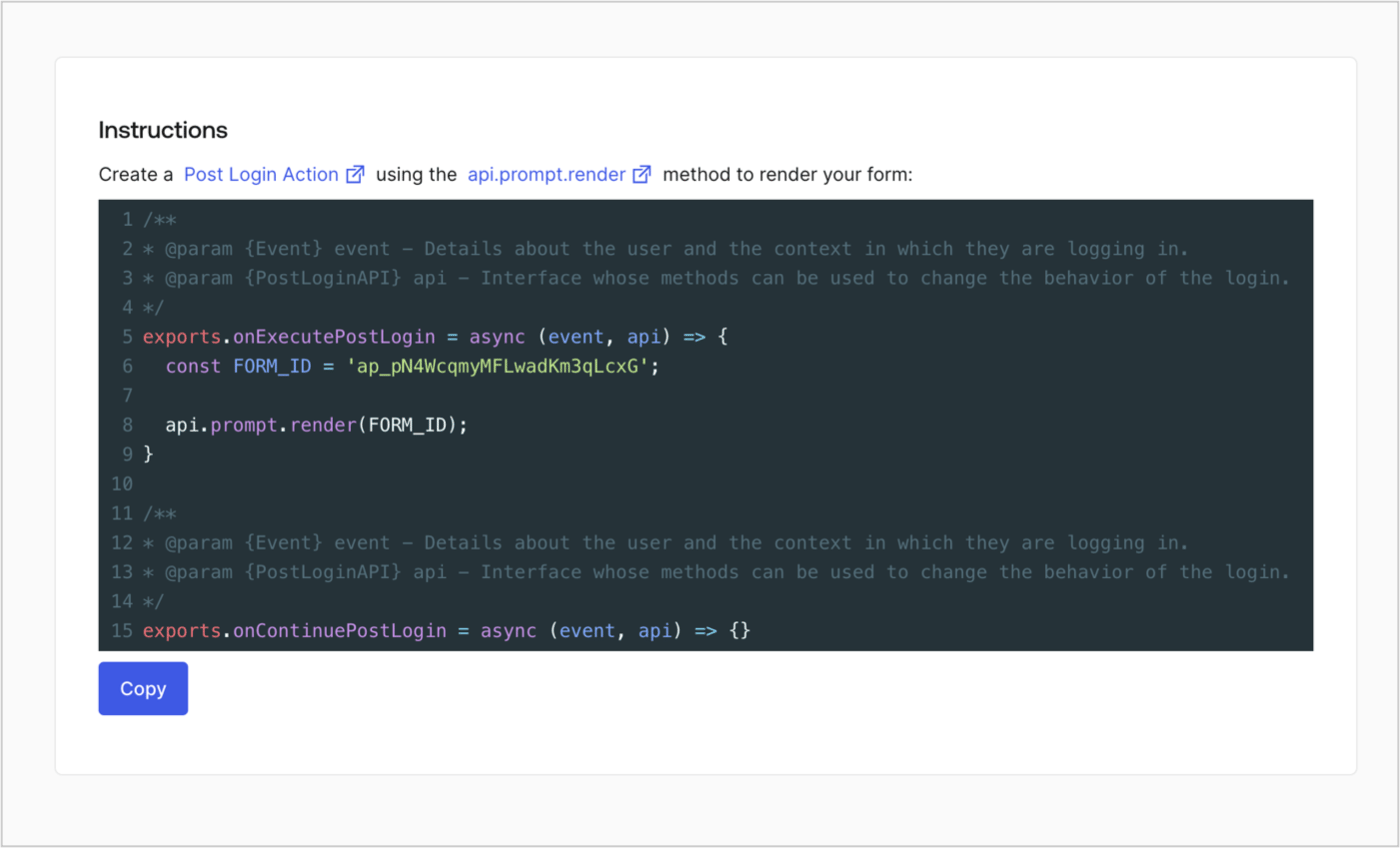
次の手順に従って、カスタムの Post Login Action でフォームを視覚的にレンダリングするためのレンダリングコードを取得します。

* フォームエディターで、**`<> Render`** を選択します。
* **Copy** を選択します。
<Frame>
  <img src="https://mintcdn.com/docs-dev-chore-actions-triggers-autoupdate/Bi6A9RAv5JG5Lq49/docs/images/cdy7uua7fh8z/2EIUzc539sq9lwoTKbjoJv/496a864c0fc44a782c9cadca119dbfb0/embed.png?fit=max&auto=format&n=Bi6A9RAv5JG5Lq49&q=85&s=3c4335e02bd284220dded4b926139d6c" alt="Dashboard > Actions > Forms > Form > Embed" data-og-width="1400" width="1400" data-og-height="848" height="848" data-path="docs/images/cdy7uua7fh8z/2EIUzc539sq9lwoTKbjoJv/496a864c0fc44a782c9cadca119dbfb0/embed.png" data-optimize="true" data-opv="3" srcset="https://mintcdn.com/docs-dev-chore-actions-triggers-autoupdate/Bi6A9RAv5JG5Lq49/docs/images/cdy7uua7fh8z/2EIUzc539sq9lwoTKbjoJv/496a864c0fc44a782c9cadca119dbfb0/embed.png?w=280&fit=max&auto=format&n=Bi6A9RAv5JG5Lq49&q=85&s=ac4eb77fb3f87cb6a1d1d22ac2746dde 280w, https://mintcdn.com/docs-dev-chore-actions-triggers-autoupdate/Bi6A9RAv5JG5Lq49/docs/images/cdy7uua7fh8z/2EIUzc539sq9lwoTKbjoJv/496a864c0fc44a782c9cadca119dbfb0/embed.png?w=560&fit=max&auto=format&n=Bi6A9RAv5JG5Lq49&q=85&s=b58280d124d56bf41ceff80a3a9b4dee 560w, https://mintcdn.com/docs-dev-chore-actions-triggers-autoupdate/Bi6A9RAv5JG5Lq49/docs/images/cdy7uua7fh8z/2EIUzc539sq9lwoTKbjoJv/496a864c0fc44a782c9cadca119dbfb0/embed.png?w=840&fit=max&auto=format&n=Bi6A9RAv5JG5Lq49&q=85&s=4802c81436ac65a14015a0ceb31e05d3 840w, https://mintcdn.com/docs-dev-chore-actions-triggers-autoupdate/Bi6A9RAv5JG5Lq49/docs/images/cdy7uua7fh8z/2EIUzc539sq9lwoTKbjoJv/496a864c0fc44a782c9cadca119dbfb0/embed.png?w=1100&fit=max&auto=format&n=Bi6A9RAv5JG5Lq49&q=85&s=df969fdaa17e2c6512fc8a4d0f0b7496 1100w, https://mintcdn.com/docs-dev-chore-actions-triggers-autoupdate/Bi6A9RAv5JG5Lq49/docs/images/cdy7uua7fh8z/2EIUzc539sq9lwoTKbjoJv/496a864c0fc44a782c9cadca119dbfb0/embed.png?w=1650&fit=max&auto=format&n=Bi6A9RAv5JG5Lq49&q=85&s=b20867730bed25b34eb175b63663dd77 1650w, https://mintcdn.com/docs-dev-chore-actions-triggers-autoupdate/Bi6A9RAv5JG5Lq49/docs/images/cdy7uua7fh8z/2EIUzc539sq9lwoTKbjoJv/496a864c0fc44a782c9cadca119dbfb0/embed.png?w=2500&fit=max&auto=format&n=Bi6A9RAv5JG5Lq49&q=85&s=da99087abad19e7d8bfda8387a68f78f 2500w" />
</Frame>

<h2 id="create-a-post-login-action">
  Post Login Action を作成する
</h2>

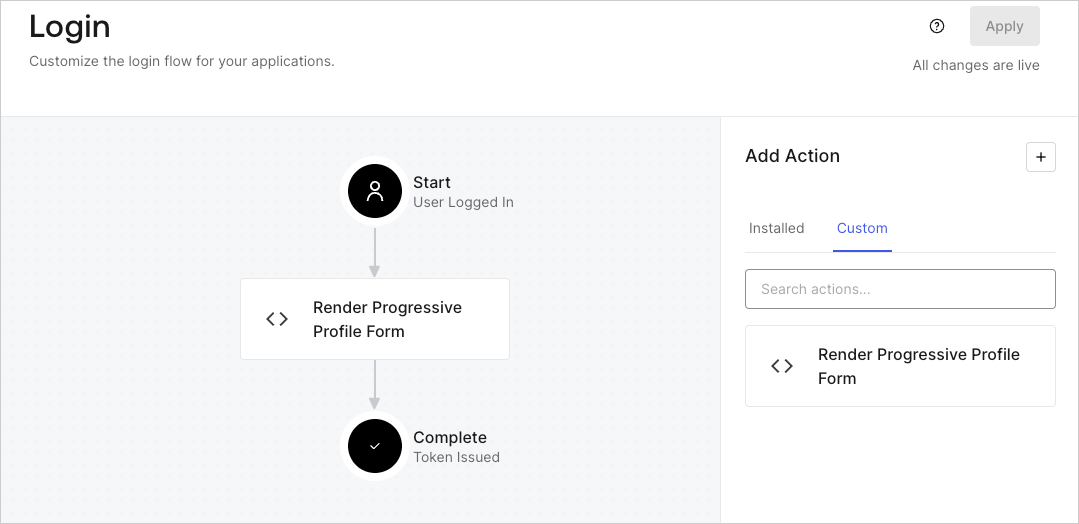
以下の手順で、フォームを表示する post-login Action を作成します。

1. **Auth0 Dashboard > Actions > Flows > Login** に移動します。
2. **+** アイコンを選択し、**Build from scratch** を選択します。

   * **Name**: `Render Progressive Profile Form` と入力します。
   * **Trigger**: `Login / Post Login` を選択します。
   * **Runtime**: 推奨バージョンを選択します。
3. **Create** を選択します。

post-login Action を設定するには、次の手順に従います。

1. Code editor から既存のコードを削除します。
2. フォームの埋め込みコードを Code editor に貼り付けます。
3. フォームを表示する条件ロジックを定義するようにコードを編集します。

   ```javascript lines theme={null}
   /**
   * @param {Event} event - ユーザーおよびログイン時のコンテキストに関する詳細。
   * @param {PostLoginAPI} api - ログインの動作を変更するために使用できるメソッドを備えたインターフェース。
   */
   exports.onExecutePostLogin = async (event, api) => {
     const FORM_ID = 'REPLACE_WITH_YOUR_FORM_ID';

     if (
       event.stats.logins_count > 2 &&
       !event.user.user_metadata.company_name &&
       !event.user.user_metadata.job_title
     ) {
       api.prompt.render(FORM_ID);
     }
   }

   exports.onContinuePostLogin = async (event, api) => { }
   ```

   <Callout icon="file-lines" color="#0EA5E9" iconType="regular">
     上記のコード例では、ユーザーのログイン回数が 2 回を超えており、ユーザー metadata の `company_name` と `job_title` プロパティがない場合にフォームが表示されます。
   </Callout>
4. **Deploy** を選択します。
5. **Render Progressive Profile Form** Action を **Login** フローにドラッグ＆ドロップします。

   <Frame>
     <img src="https://mintcdn.com/docs-dev-chore-actions-triggers-autoupdate/lnAPXLzH3RcvNR6L/docs/images/cdy7uua7fh8z/1QjjZdpTqTxx012UDN4xk9/99fba5ef4068a5688f1762eea7f42976/renderprogessiveprofile.png?fit=max&auto=format&n=lnAPXLzH3RcvNR6L&q=85&s=7be8888087b395a8a3f73acbd56ce912" alt="Dashboard > Forms > Use Cases Progressive Profile Login Action" data-og-width="1079" width="1079" data-og-height="524" height="524" data-path="docs/images/cdy7uua7fh8z/1QjjZdpTqTxx012UDN4xk9/99fba5ef4068a5688f1762eea7f42976/renderprogessiveprofile.png" data-optimize="true" data-opv="3" srcset="https://mintcdn.com/docs-dev-chore-actions-triggers-autoupdate/lnAPXLzH3RcvNR6L/docs/images/cdy7uua7fh8z/1QjjZdpTqTxx012UDN4xk9/99fba5ef4068a5688f1762eea7f42976/renderprogessiveprofile.png?w=280&fit=max&auto=format&n=lnAPXLzH3RcvNR6L&q=85&s=b386f4a2b77e29cd95abf767cb84f88c 280w, https://mintcdn.com/docs-dev-chore-actions-triggers-autoupdate/lnAPXLzH3RcvNR6L/docs/images/cdy7uua7fh8z/1QjjZdpTqTxx012UDN4xk9/99fba5ef4068a5688f1762eea7f42976/renderprogessiveprofile.png?w=560&fit=max&auto=format&n=lnAPXLzH3RcvNR6L&q=85&s=242099189ce982d06961206b131200a1 560w, https://mintcdn.com/docs-dev-chore-actions-triggers-autoupdate/lnAPXLzH3RcvNR6L/docs/images/cdy7uua7fh8z/1QjjZdpTqTxx012UDN4xk9/99fba5ef4068a5688f1762eea7f42976/renderprogessiveprofile.png?w=840&fit=max&auto=format&n=lnAPXLzH3RcvNR6L&q=85&s=d3f5774355bea1aea9e8f48c0decbf8a 840w, https://mintcdn.com/docs-dev-chore-actions-triggers-autoupdate/lnAPXLzH3RcvNR6L/docs/images/cdy7uua7fh8z/1QjjZdpTqTxx012UDN4xk9/99fba5ef4068a5688f1762eea7f42976/renderprogessiveprofile.png?w=1100&fit=max&auto=format&n=lnAPXLzH3RcvNR6L&q=85&s=c79975d83301a6f75df5efdd0e7211e6 1100w, https://mintcdn.com/docs-dev-chore-actions-triggers-autoupdate/lnAPXLzH3RcvNR6L/docs/images/cdy7uua7fh8z/1QjjZdpTqTxx012UDN4xk9/99fba5ef4068a5688f1762eea7f42976/renderprogessiveprofile.png?w=1650&fit=max&auto=format&n=lnAPXLzH3RcvNR6L&q=85&s=274ae2d1a62cc7011b346a3adc594ab1 1650w, https://mintcdn.com/docs-dev-chore-actions-triggers-autoupdate/lnAPXLzH3RcvNR6L/docs/images/cdy7uua7fh8z/1QjjZdpTqTxx012UDN4xk9/99fba5ef4068a5688f1762eea7f42976/renderprogessiveprofile.png?w=2500&fit=max&auto=format&n=lnAPXLzH3RcvNR6L&q=85&s=2eef0fde5e3236efcb37d14f5929074d 2500w" />
   </Frame>
6. **Apply** を選択します。

<h3 id="test-implementation">
  実装のテスト
</h3>

次の手順で実装をテストします。

1. ログイン回数が 2 回を超えていて、`user_metadata` 属性の `company_name` と `job_title` に値が設定されていない既存ユーザーでログインします。
2. Login フローの Post Login Action によってフォームが表示され、情報の入力を求められます。
3. **Auth0 Dashboard > User Management > Users** を選択し、該当するユーザーを見つけて、`user_metadata` 属性の `company_name` と `job_title` に情報が含まれていることを確認します。