> ## Documentation Index
> Fetch the complete documentation index at: https://docs-dev-chore-actions-triggers-autoupdate.mintlify.site/llms.txt
> Use this file to discover all available pages before exploring further.

> Learn how to configure an update policy form using Forms for Actions for users to review and accept new terms of service or consent updates.

# Use Cases: Configure an update policy form using Forms

<Card title="Before you start">
  1. Create a [Machine-to-Machine Application](/docs/get-started/auth0-overview/create-applications/machine-to-machine-apps) with the following scopes enabled:

  * `read:users`
  * `update:users`
  * `create:users`
  * `read:users_app_metadata`
  * `update:users_app_metadata`
  * `create:users_app_metadata`

  2. Add a [Vault connection](/docs/customize/forms/vault) using the M2M application credentials.
</Card>

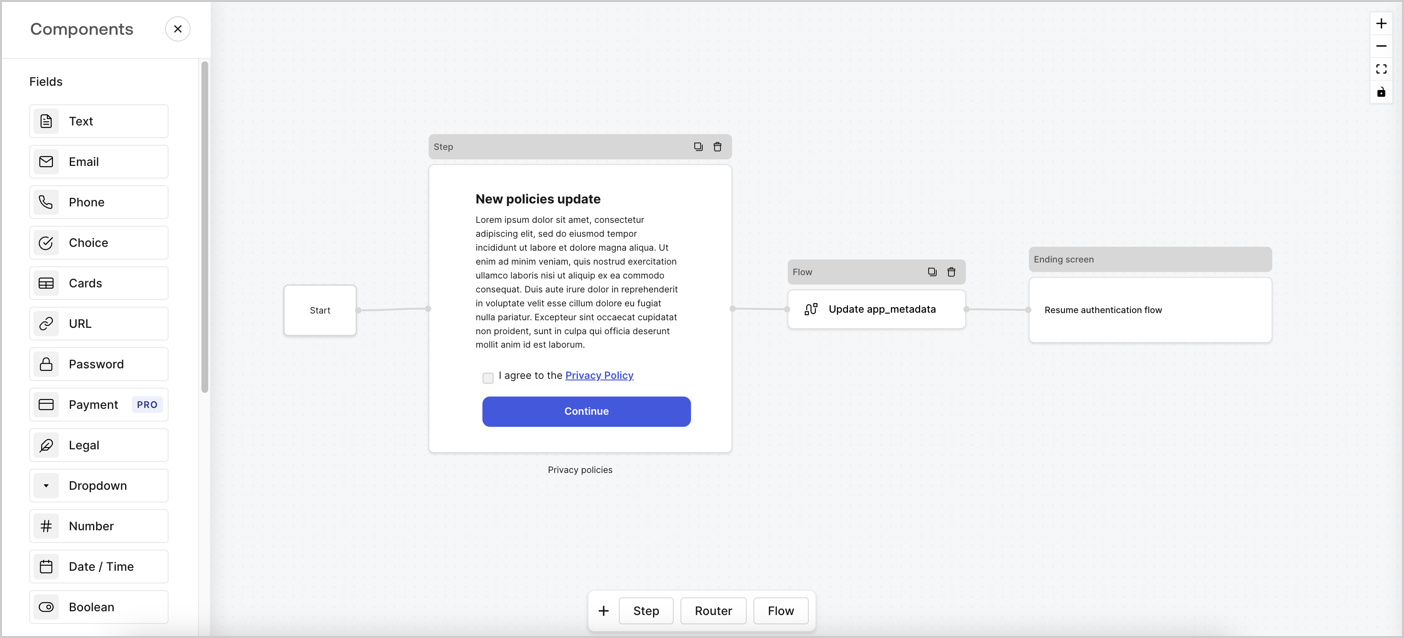
Forms for Actions allows you to create custom privacy policies flows and store the consent under the `app_metadata` object.
<Frame>
  <img src="https://mintcdn.com/docs-dev-chore-actions-triggers-autoupdate/JeCjEaTFYoe6VDKn/docs/images/cdy7uua7fh8z/6i68dMvHDTijfRmSgN1x8Q/ad900e7d4c0fb34645921435472b8684/privavy-policy-form.png?fit=max&auto=format&n=JeCjEaTFYoe6VDKn&q=85&s=e44ccf84cd3432fb157428a27822d049" alt="Dashboard > Actions > Forms > Privacy policy use case" data-og-width="1404" width="1404" data-og-height="638" height="638" data-path="docs/images/cdy7uua7fh8z/6i68dMvHDTijfRmSgN1x8Q/ad900e7d4c0fb34645921435472b8684/privavy-policy-form.png" data-optimize="true" data-opv="3" srcset="https://mintcdn.com/docs-dev-chore-actions-triggers-autoupdate/JeCjEaTFYoe6VDKn/docs/images/cdy7uua7fh8z/6i68dMvHDTijfRmSgN1x8Q/ad900e7d4c0fb34645921435472b8684/privavy-policy-form.png?w=280&fit=max&auto=format&n=JeCjEaTFYoe6VDKn&q=85&s=baca3cedbd8ced7f549c710b68af566e 280w, https://mintcdn.com/docs-dev-chore-actions-triggers-autoupdate/JeCjEaTFYoe6VDKn/docs/images/cdy7uua7fh8z/6i68dMvHDTijfRmSgN1x8Q/ad900e7d4c0fb34645921435472b8684/privavy-policy-form.png?w=560&fit=max&auto=format&n=JeCjEaTFYoe6VDKn&q=85&s=4cca18f95b44edb87805aa0a97f946f1 560w, https://mintcdn.com/docs-dev-chore-actions-triggers-autoupdate/JeCjEaTFYoe6VDKn/docs/images/cdy7uua7fh8z/6i68dMvHDTijfRmSgN1x8Q/ad900e7d4c0fb34645921435472b8684/privavy-policy-form.png?w=840&fit=max&auto=format&n=JeCjEaTFYoe6VDKn&q=85&s=c33b139d3c8ccc62328c4d635afd5b7b 840w, https://mintcdn.com/docs-dev-chore-actions-triggers-autoupdate/JeCjEaTFYoe6VDKn/docs/images/cdy7uua7fh8z/6i68dMvHDTijfRmSgN1x8Q/ad900e7d4c0fb34645921435472b8684/privavy-policy-form.png?w=1100&fit=max&auto=format&n=JeCjEaTFYoe6VDKn&q=85&s=cbff0566457759a46458db864add70ae 1100w, https://mintcdn.com/docs-dev-chore-actions-triggers-autoupdate/JeCjEaTFYoe6VDKn/docs/images/cdy7uua7fh8z/6i68dMvHDTijfRmSgN1x8Q/ad900e7d4c0fb34645921435472b8684/privavy-policy-form.png?w=1650&fit=max&auto=format&n=JeCjEaTFYoe6VDKn&q=85&s=85a6210d3859cbb950dd87109f50f46a 1650w, https://mintcdn.com/docs-dev-chore-actions-triggers-autoupdate/JeCjEaTFYoe6VDKn/docs/images/cdy7uua7fh8z/6i68dMvHDTijfRmSgN1x8Q/ad900e7d4c0fb34645921435472b8684/privavy-policy-form.png?w=2500&fit=max&auto=format&n=JeCjEaTFYoe6VDKn&q=85&s=22e632472dd6cbd525c7823b6cbc30a5 2500w" />
</Frame>

The sections below outline how you can create an Update Policy form using nodes and flows, along with steps for adding your form to a [Post Login](/docs/customize/actions/explore-triggers/signup-and-login-triggers/login-trigger) Action.

## Create a form from scratch

Follow these steps to create a form to gather information:

1. Open the Form editor by selecting **Auth0 Dashboard > Actions > Forms.**
2. Select **Create Form** > **Start from scratch**.

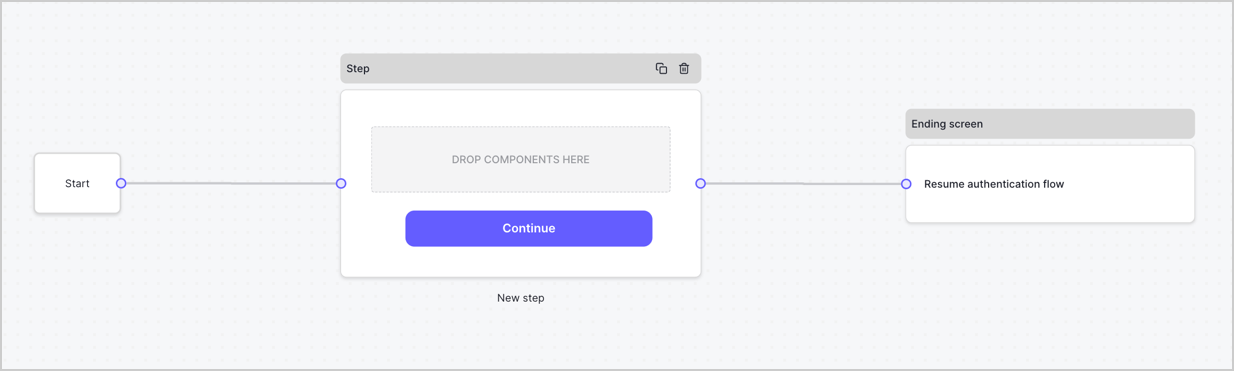
By default, a new form contains a Start node, a Step node, and an Ending screen node.
<Frame>
  <img src="https://mintcdn.com/docs-dev-chore-actions-triggers-autoupdate/khsGGGmvn88p2r99/docs/images/cdy7uua7fh8z/2TZ9jSjgEcARFpULI6hz4R/a4319a1bd482f2ee5cc23100fdb2f42c/New-form-Forms-for-action-use-case.png?fit=max&auto=format&n=khsGGGmvn88p2r99&q=85&s=f1dbf58e4566a5357d594dcaf959bd81" alt="Dashboard > Forms > Use Cases > Form" data-og-width="1234" width="1234" data-og-height="371" height="371" data-path="docs/images/cdy7uua7fh8z/2TZ9jSjgEcARFpULI6hz4R/a4319a1bd482f2ee5cc23100fdb2f42c/New-form-Forms-for-action-use-case.png" data-optimize="true" data-opv="3" srcset="https://mintcdn.com/docs-dev-chore-actions-triggers-autoupdate/khsGGGmvn88p2r99/docs/images/cdy7uua7fh8z/2TZ9jSjgEcARFpULI6hz4R/a4319a1bd482f2ee5cc23100fdb2f42c/New-form-Forms-for-action-use-case.png?w=280&fit=max&auto=format&n=khsGGGmvn88p2r99&q=85&s=4d90bdcaf4dcc6e9387e45af26cf5d3a 280w, https://mintcdn.com/docs-dev-chore-actions-triggers-autoupdate/khsGGGmvn88p2r99/docs/images/cdy7uua7fh8z/2TZ9jSjgEcARFpULI6hz4R/a4319a1bd482f2ee5cc23100fdb2f42c/New-form-Forms-for-action-use-case.png?w=560&fit=max&auto=format&n=khsGGGmvn88p2r99&q=85&s=6cb05b196f2fac0ea170614da0e7a363 560w, https://mintcdn.com/docs-dev-chore-actions-triggers-autoupdate/khsGGGmvn88p2r99/docs/images/cdy7uua7fh8z/2TZ9jSjgEcARFpULI6hz4R/a4319a1bd482f2ee5cc23100fdb2f42c/New-form-Forms-for-action-use-case.png?w=840&fit=max&auto=format&n=khsGGGmvn88p2r99&q=85&s=6cdc16bf26629ecfecbec7b9e9941fa3 840w, https://mintcdn.com/docs-dev-chore-actions-triggers-autoupdate/khsGGGmvn88p2r99/docs/images/cdy7uua7fh8z/2TZ9jSjgEcARFpULI6hz4R/a4319a1bd482f2ee5cc23100fdb2f42c/New-form-Forms-for-action-use-case.png?w=1100&fit=max&auto=format&n=khsGGGmvn88p2r99&q=85&s=87d1315d87789acd3eac975e111504eb 1100w, https://mintcdn.com/docs-dev-chore-actions-triggers-autoupdate/khsGGGmvn88p2r99/docs/images/cdy7uua7fh8z/2TZ9jSjgEcARFpULI6hz4R/a4319a1bd482f2ee5cc23100fdb2f42c/New-form-Forms-for-action-use-case.png?w=1650&fit=max&auto=format&n=khsGGGmvn88p2r99&q=85&s=f933b4a6086fa8588140adbd3e9393cb 1650w, https://mintcdn.com/docs-dev-chore-actions-triggers-autoupdate/khsGGGmvn88p2r99/docs/images/cdy7uua7fh8z/2TZ9jSjgEcARFpULI6hz4R/a4319a1bd482f2ee5cc23100fdb2f42c/New-form-Forms-for-action-use-case.png?w=2500&fit=max&auto=format&n=khsGGGmvn88p2r99&q=85&s=39a6cae92f72c55d09bd854a11133255 2500w" />
</Frame>

### Configure the Step node

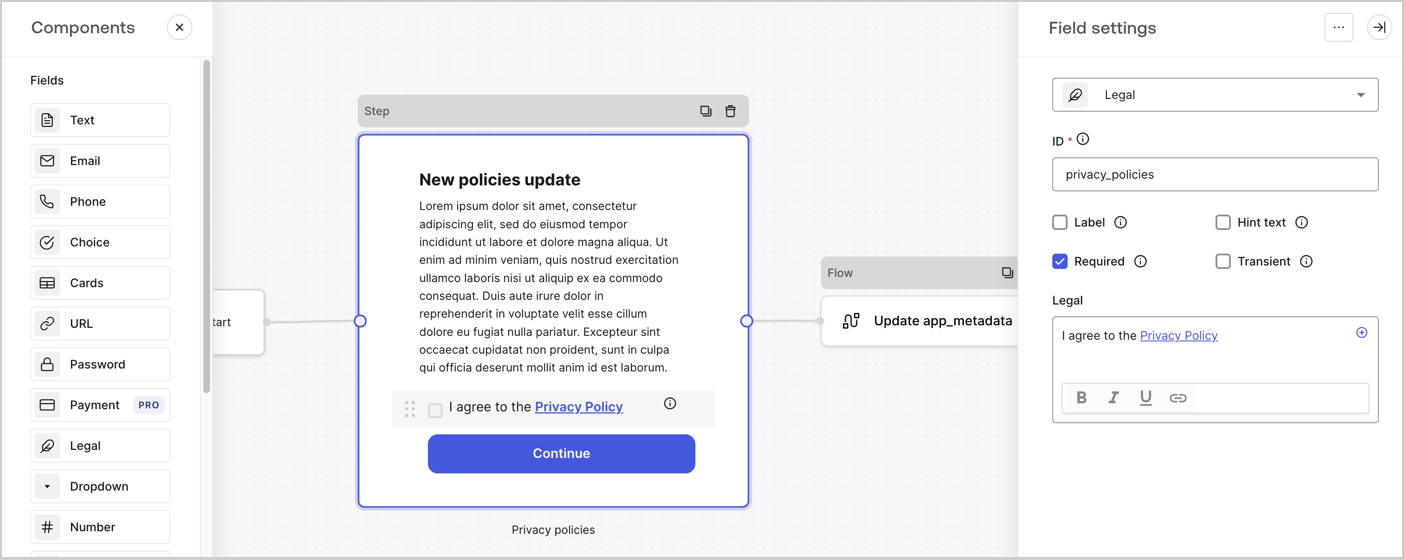
The Step node is the graphical interface visible to users. Add [Fields](/docs/customize/forms/nodes-and-components) to the Step node to collect the new agreement acceptance value by following these steps:

1. Drag a **Rich text** field from the **Components menu** into the **Step** node.

   * **Rich text**: Enter a description of your privacy policies updates.
   * Select **Save**.
2. Drag a **Legal** field into the **Step** node.

   * **ID**: Enter `privacy_policies`.
   * **Required**: Enable the checkbox.
   * **Legal**: Enter `I agree to the Privacy Policy`.
   * Select **Save**.
3. Select **Publish** to save.
<Frame>
  <img src="https://mintcdn.com/docs-dev-chore-actions-triggers-autoupdate/R5ivmkXd2l4BLNhc/docs/images/cdy7uua7fh8z/59zFFjQjAnjogkc2QGIqqJ/0ad66b1b636544122aa4e65968b76c2c/privacy-policy-step-node.png?fit=max&auto=format&n=R5ivmkXd2l4BLNhc&q=85&s=9a26ce9ec9f01caabc7ab8577290cb84" alt="Dashboard > Actions > Forms > Use case privacy policy step node" data-og-width="1404" width="1404" data-og-height="559" height="559" data-path="docs/images/cdy7uua7fh8z/59zFFjQjAnjogkc2QGIqqJ/0ad66b1b636544122aa4e65968b76c2c/privacy-policy-step-node.png" data-optimize="true" data-opv="3" srcset="https://mintcdn.com/docs-dev-chore-actions-triggers-autoupdate/R5ivmkXd2l4BLNhc/docs/images/cdy7uua7fh8z/59zFFjQjAnjogkc2QGIqqJ/0ad66b1b636544122aa4e65968b76c2c/privacy-policy-step-node.png?w=280&fit=max&auto=format&n=R5ivmkXd2l4BLNhc&q=85&s=5a94e5029b4c2a14adcc04a4d0279e1e 280w, https://mintcdn.com/docs-dev-chore-actions-triggers-autoupdate/R5ivmkXd2l4BLNhc/docs/images/cdy7uua7fh8z/59zFFjQjAnjogkc2QGIqqJ/0ad66b1b636544122aa4e65968b76c2c/privacy-policy-step-node.png?w=560&fit=max&auto=format&n=R5ivmkXd2l4BLNhc&q=85&s=8d4e3f70ebb00b29e53fcb983d98732b 560w, https://mintcdn.com/docs-dev-chore-actions-triggers-autoupdate/R5ivmkXd2l4BLNhc/docs/images/cdy7uua7fh8z/59zFFjQjAnjogkc2QGIqqJ/0ad66b1b636544122aa4e65968b76c2c/privacy-policy-step-node.png?w=840&fit=max&auto=format&n=R5ivmkXd2l4BLNhc&q=85&s=af18348532b937b6d5fd44e5ce2e2070 840w, https://mintcdn.com/docs-dev-chore-actions-triggers-autoupdate/R5ivmkXd2l4BLNhc/docs/images/cdy7uua7fh8z/59zFFjQjAnjogkc2QGIqqJ/0ad66b1b636544122aa4e65968b76c2c/privacy-policy-step-node.png?w=1100&fit=max&auto=format&n=R5ivmkXd2l4BLNhc&q=85&s=02f2e3adf61904e5d275f49db7f9afb8 1100w, https://mintcdn.com/docs-dev-chore-actions-triggers-autoupdate/R5ivmkXd2l4BLNhc/docs/images/cdy7uua7fh8z/59zFFjQjAnjogkc2QGIqqJ/0ad66b1b636544122aa4e65968b76c2c/privacy-policy-step-node.png?w=1650&fit=max&auto=format&n=R5ivmkXd2l4BLNhc&q=85&s=e811c86bcbd75ed89f52ece5cb4801f8 1650w, https://mintcdn.com/docs-dev-chore-actions-triggers-autoupdate/R5ivmkXd2l4BLNhc/docs/images/cdy7uua7fh8z/59zFFjQjAnjogkc2QGIqqJ/0ad66b1b636544122aa4e65968b76c2c/privacy-policy-step-node.png?w=2500&fit=max&auto=format&n=R5ivmkXd2l4BLNhc&q=85&s=a8fe192891471c921a847fab2df68e8f 2500w" />
</Frame>

### Configure the Flow node

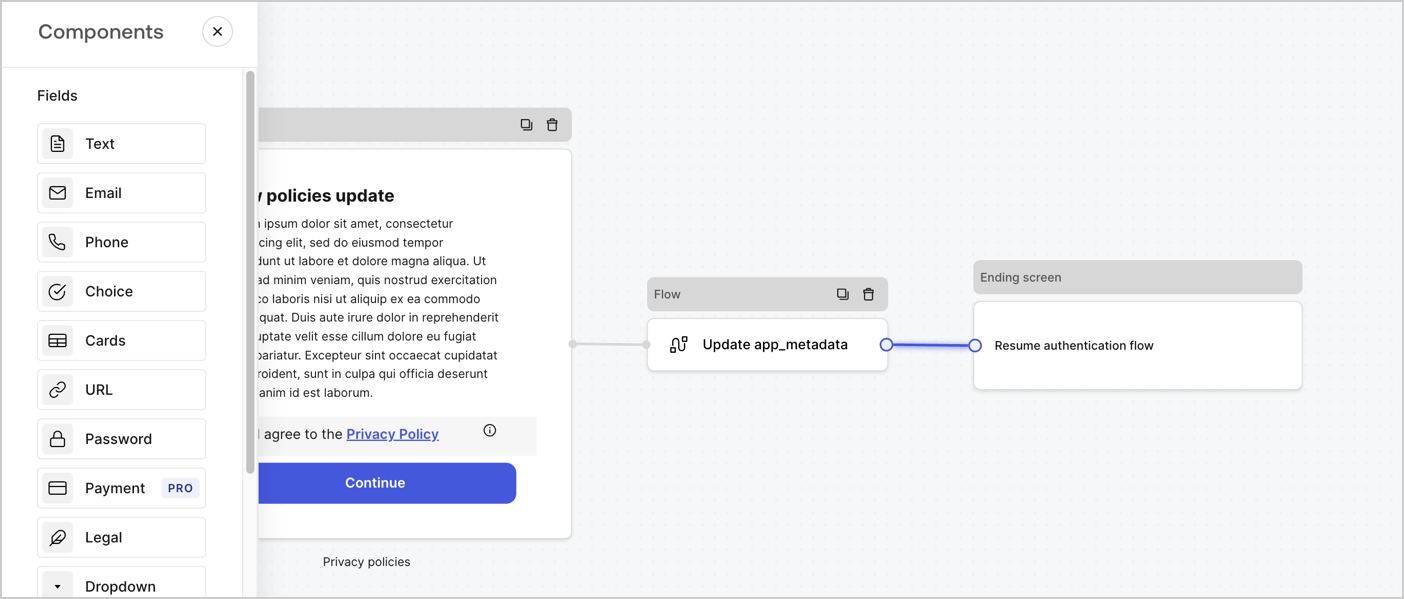
Add a **Flow** node after the **Step** node to update the `app_metadata` and resume the authentication flow by following these steps:

1. Select **Flow** from the bottom of the Form editor.
2. Remove the existing link between the **Step** and **Ending Screen** nodes.
3. Select the new **Flow** > **Click to add a flow** > **Create a new flow.**

   * Enter `Update app_metadata` in the **Name** field.
   * Select **Create**.
   * Select **Save**.
4. Link the **Flow** node to the **Step** and **Ending Screen** nodes as pictured below.
5. Select **Publish** to save.
<Frame>
  <img src="https://mintcdn.com/docs-dev-chore-actions-triggers-autoupdate/JeCjEaTFYoe6VDKn/docs/images/cdy7uua7fh8z/6YIkzm7SrpM9LW76AXuRzh/353c518fe82bbaa440836da1d83596d6/link-policies.png?fit=max&auto=format&n=JeCjEaTFYoe6VDKn&q=85&s=b8c233aeeaa410c9bedda725c3fa6f71" alt="Dashboard > Actions > Forms > Form" data-og-width="1404" width="1404" data-og-height="599" height="599" data-path="docs/images/cdy7uua7fh8z/6YIkzm7SrpM9LW76AXuRzh/353c518fe82bbaa440836da1d83596d6/link-policies.png" data-optimize="true" data-opv="3" srcset="https://mintcdn.com/docs-dev-chore-actions-triggers-autoupdate/JeCjEaTFYoe6VDKn/docs/images/cdy7uua7fh8z/6YIkzm7SrpM9LW76AXuRzh/353c518fe82bbaa440836da1d83596d6/link-policies.png?w=280&fit=max&auto=format&n=JeCjEaTFYoe6VDKn&q=85&s=909bcc1a7727aba13f19cf7ed51b24c4 280w, https://mintcdn.com/docs-dev-chore-actions-triggers-autoupdate/JeCjEaTFYoe6VDKn/docs/images/cdy7uua7fh8z/6YIkzm7SrpM9LW76AXuRzh/353c518fe82bbaa440836da1d83596d6/link-policies.png?w=560&fit=max&auto=format&n=JeCjEaTFYoe6VDKn&q=85&s=fde7fcdb4b770ac06538b79669553613 560w, https://mintcdn.com/docs-dev-chore-actions-triggers-autoupdate/JeCjEaTFYoe6VDKn/docs/images/cdy7uua7fh8z/6YIkzm7SrpM9LW76AXuRzh/353c518fe82bbaa440836da1d83596d6/link-policies.png?w=840&fit=max&auto=format&n=JeCjEaTFYoe6VDKn&q=85&s=f66910bebea7dc74d3960a552fd8c793 840w, https://mintcdn.com/docs-dev-chore-actions-triggers-autoupdate/JeCjEaTFYoe6VDKn/docs/images/cdy7uua7fh8z/6YIkzm7SrpM9LW76AXuRzh/353c518fe82bbaa440836da1d83596d6/link-policies.png?w=1100&fit=max&auto=format&n=JeCjEaTFYoe6VDKn&q=85&s=62ff141c58fbbe7567f595662a17386b 1100w, https://mintcdn.com/docs-dev-chore-actions-triggers-autoupdate/JeCjEaTFYoe6VDKn/docs/images/cdy7uua7fh8z/6YIkzm7SrpM9LW76AXuRzh/353c518fe82bbaa440836da1d83596d6/link-policies.png?w=1650&fit=max&auto=format&n=JeCjEaTFYoe6VDKn&q=85&s=37cf03587bc046c5d849902ea28260a9 1650w, https://mintcdn.com/docs-dev-chore-actions-triggers-autoupdate/JeCjEaTFYoe6VDKn/docs/images/cdy7uua7fh8z/6YIkzm7SrpM9LW76AXuRzh/353c518fe82bbaa440836da1d83596d6/link-policies.png?w=2500&fit=max&auto=format&n=JeCjEaTFYoe6VDKn&q=85&s=73c52f4e1d9517d9a9693cae38d0fead 2500w" />
</Frame>

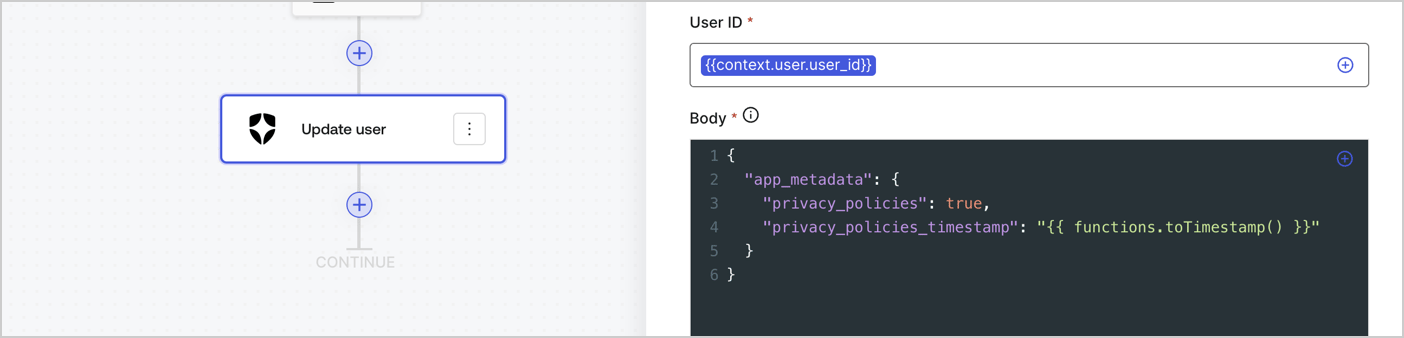
Add an Auth0 Update user action to the flow by following these steps:

1. Select the **Flow** **Update app\_metadata** > **Edit flow** to open the Flow editor in a new tab.
2. Below the StartAction, select the **+** icon to add an **Update user** action. Complete the fields below, then select **Save** to continue.

   * **Connection**: Select from the dropdown the Vault connection to your M2M application.

   * **User ID**: Enter `{{context.user.user_id}}`.

   * **Body**: Copy and paste the following code to update the app\_metadata with the privacy\_policies and privacy\_policies\_timestamp properties.

     ```text lines theme={null}
     {
       "app_metadata": {
         "privacy_policies": true,
         "privacy_policies_timestamp": "{{ functions.toTimestamp() }}"
       }
     }
     ```

   * Select **Save**.
3. Select **Publish** to save.
<Frame>
  <img src="https://mintcdn.com/docs-dev-chore-actions-triggers-autoupdate/3WwjcOxdID2bTXPK/docs/images/cdy7uua7fh8z/CvMNIwWrOUwaFW4X3G28p/1fb70ae57a20749d9ffaaba8dc0b7e26/update-user-privacy.png?fit=max&auto=format&n=3WwjcOxdID2bTXPK&q=85&s=fc82ca96d9155a3c3ce2f20a0ae9b2fa" alt="Dashboard > Actions > Forms > User case privacy policy code" data-og-width="1404" width="1404" data-og-height="338" height="338" data-path="docs/images/cdy7uua7fh8z/CvMNIwWrOUwaFW4X3G28p/1fb70ae57a20749d9ffaaba8dc0b7e26/update-user-privacy.png" data-optimize="true" data-opv="3" srcset="https://mintcdn.com/docs-dev-chore-actions-triggers-autoupdate/3WwjcOxdID2bTXPK/docs/images/cdy7uua7fh8z/CvMNIwWrOUwaFW4X3G28p/1fb70ae57a20749d9ffaaba8dc0b7e26/update-user-privacy.png?w=280&fit=max&auto=format&n=3WwjcOxdID2bTXPK&q=85&s=e8543770bec8c1b551f15cd4e605f06d 280w, https://mintcdn.com/docs-dev-chore-actions-triggers-autoupdate/3WwjcOxdID2bTXPK/docs/images/cdy7uua7fh8z/CvMNIwWrOUwaFW4X3G28p/1fb70ae57a20749d9ffaaba8dc0b7e26/update-user-privacy.png?w=560&fit=max&auto=format&n=3WwjcOxdID2bTXPK&q=85&s=ed0f1f017f2a0d59ff1ec462494e5f74 560w, https://mintcdn.com/docs-dev-chore-actions-triggers-autoupdate/3WwjcOxdID2bTXPK/docs/images/cdy7uua7fh8z/CvMNIwWrOUwaFW4X3G28p/1fb70ae57a20749d9ffaaba8dc0b7e26/update-user-privacy.png?w=840&fit=max&auto=format&n=3WwjcOxdID2bTXPK&q=85&s=deea95ac68f3dec02ba930cf4209bb8d 840w, https://mintcdn.com/docs-dev-chore-actions-triggers-autoupdate/3WwjcOxdID2bTXPK/docs/images/cdy7uua7fh8z/CvMNIwWrOUwaFW4X3G28p/1fb70ae57a20749d9ffaaba8dc0b7e26/update-user-privacy.png?w=1100&fit=max&auto=format&n=3WwjcOxdID2bTXPK&q=85&s=bfd1f01f752fc03ea4e968f10d15a16a 1100w, https://mintcdn.com/docs-dev-chore-actions-triggers-autoupdate/3WwjcOxdID2bTXPK/docs/images/cdy7uua7fh8z/CvMNIwWrOUwaFW4X3G28p/1fb70ae57a20749d9ffaaba8dc0b7e26/update-user-privacy.png?w=1650&fit=max&auto=format&n=3WwjcOxdID2bTXPK&q=85&s=fccd1aceb7759c5155e16034f3bb3db8 1650w, https://mintcdn.com/docs-dev-chore-actions-triggers-autoupdate/3WwjcOxdID2bTXPK/docs/images/cdy7uua7fh8z/CvMNIwWrOUwaFW4X3G28p/1fb70ae57a20749d9ffaaba8dc0b7e26/update-user-privacy.png?w=2500&fit=max&auto=format&n=3WwjcOxdID2bTXPK&q=85&s=c79a08454a0c7b0f8a097135c01fac8e 2500w" />
</Frame>

<Callout icon="file-lines" color="#0EA5E9" iconType="regular">
  The flow **Update app\_metadata** adds a `privacy_policies true` value to the app`_metadata` object and also generates a timestamp with a [helper function.](/docs/customize/forms/variables)
</Callout>

## Retrieve the form render code

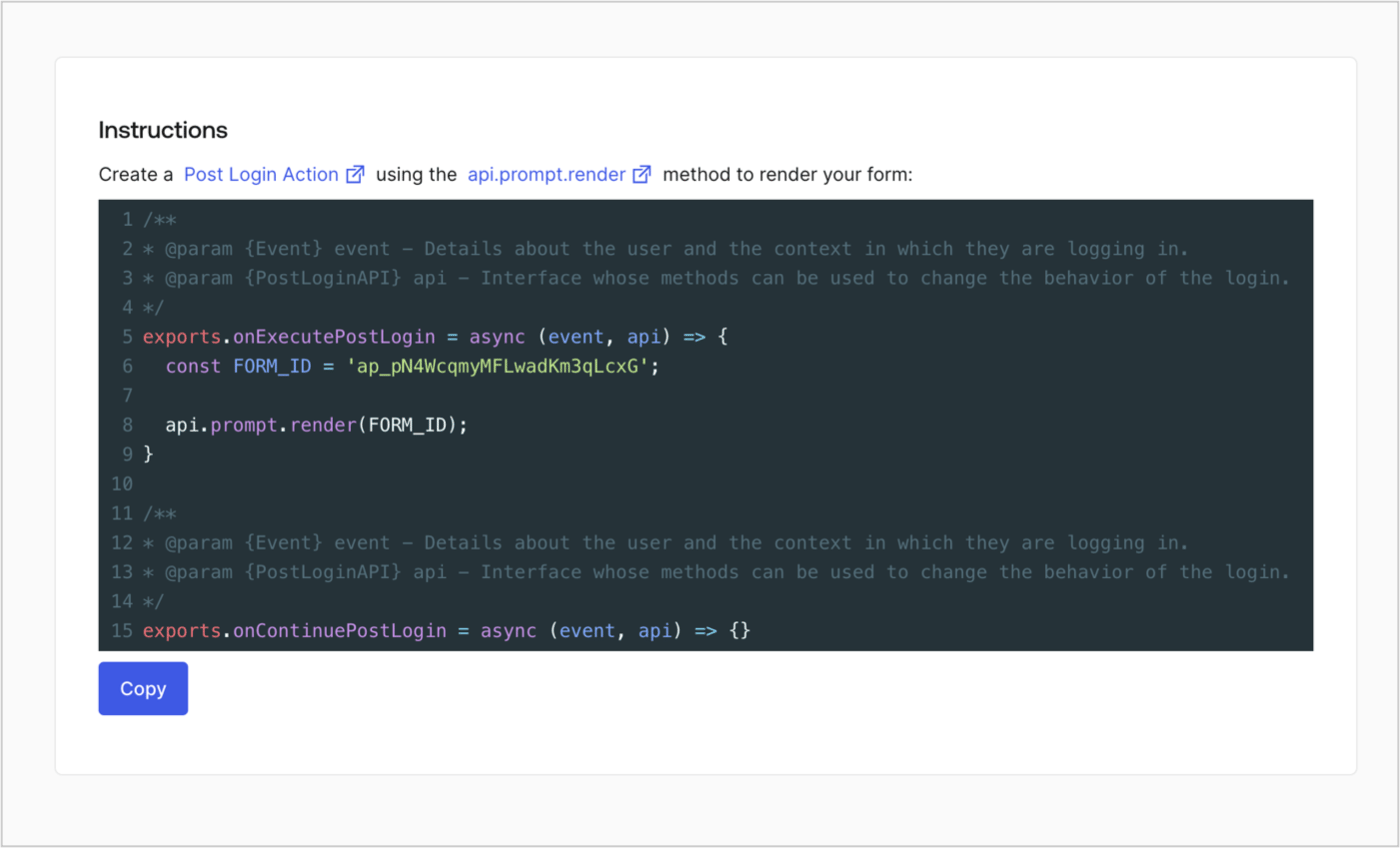
Retrieve your form render code to visually render the form with a custom Post Login Action by following these steps:

* From the Form editor, select **`<> Render`**.
* Select **Copy**.
<Frame>
  <img src="https://mintcdn.com/docs-dev-chore-actions-triggers-autoupdate/Bi6A9RAv5JG5Lq49/docs/images/cdy7uua7fh8z/2EIUzc539sq9lwoTKbjoJv/496a864c0fc44a782c9cadca119dbfb0/embed.png?fit=max&auto=format&n=Bi6A9RAv5JG5Lq49&q=85&s=3c4335e02bd284220dded4b926139d6c" alt="Dashboard > Actions > Forms > Form > Embed" data-og-width="1400" width="1400" data-og-height="848" height="848" data-path="docs/images/cdy7uua7fh8z/2EIUzc539sq9lwoTKbjoJv/496a864c0fc44a782c9cadca119dbfb0/embed.png" data-optimize="true" data-opv="3" srcset="https://mintcdn.com/docs-dev-chore-actions-triggers-autoupdate/Bi6A9RAv5JG5Lq49/docs/images/cdy7uua7fh8z/2EIUzc539sq9lwoTKbjoJv/496a864c0fc44a782c9cadca119dbfb0/embed.png?w=280&fit=max&auto=format&n=Bi6A9RAv5JG5Lq49&q=85&s=ac4eb77fb3f87cb6a1d1d22ac2746dde 280w, https://mintcdn.com/docs-dev-chore-actions-triggers-autoupdate/Bi6A9RAv5JG5Lq49/docs/images/cdy7uua7fh8z/2EIUzc539sq9lwoTKbjoJv/496a864c0fc44a782c9cadca119dbfb0/embed.png?w=560&fit=max&auto=format&n=Bi6A9RAv5JG5Lq49&q=85&s=b58280d124d56bf41ceff80a3a9b4dee 560w, https://mintcdn.com/docs-dev-chore-actions-triggers-autoupdate/Bi6A9RAv5JG5Lq49/docs/images/cdy7uua7fh8z/2EIUzc539sq9lwoTKbjoJv/496a864c0fc44a782c9cadca119dbfb0/embed.png?w=840&fit=max&auto=format&n=Bi6A9RAv5JG5Lq49&q=85&s=4802c81436ac65a14015a0ceb31e05d3 840w, https://mintcdn.com/docs-dev-chore-actions-triggers-autoupdate/Bi6A9RAv5JG5Lq49/docs/images/cdy7uua7fh8z/2EIUzc539sq9lwoTKbjoJv/496a864c0fc44a782c9cadca119dbfb0/embed.png?w=1100&fit=max&auto=format&n=Bi6A9RAv5JG5Lq49&q=85&s=df969fdaa17e2c6512fc8a4d0f0b7496 1100w, https://mintcdn.com/docs-dev-chore-actions-triggers-autoupdate/Bi6A9RAv5JG5Lq49/docs/images/cdy7uua7fh8z/2EIUzc539sq9lwoTKbjoJv/496a864c0fc44a782c9cadca119dbfb0/embed.png?w=1650&fit=max&auto=format&n=Bi6A9RAv5JG5Lq49&q=85&s=b20867730bed25b34eb175b63663dd77 1650w, https://mintcdn.com/docs-dev-chore-actions-triggers-autoupdate/Bi6A9RAv5JG5Lq49/docs/images/cdy7uua7fh8z/2EIUzc539sq9lwoTKbjoJv/496a864c0fc44a782c9cadca119dbfb0/embed.png?w=2500&fit=max&auto=format&n=Bi6A9RAv5JG5Lq49&q=85&s=da99087abad19e7d8bfda8387a68f78f 2500w" />
</Frame>

## Create a Post Login Action

Create a post-login Action to render your form by following these steps:

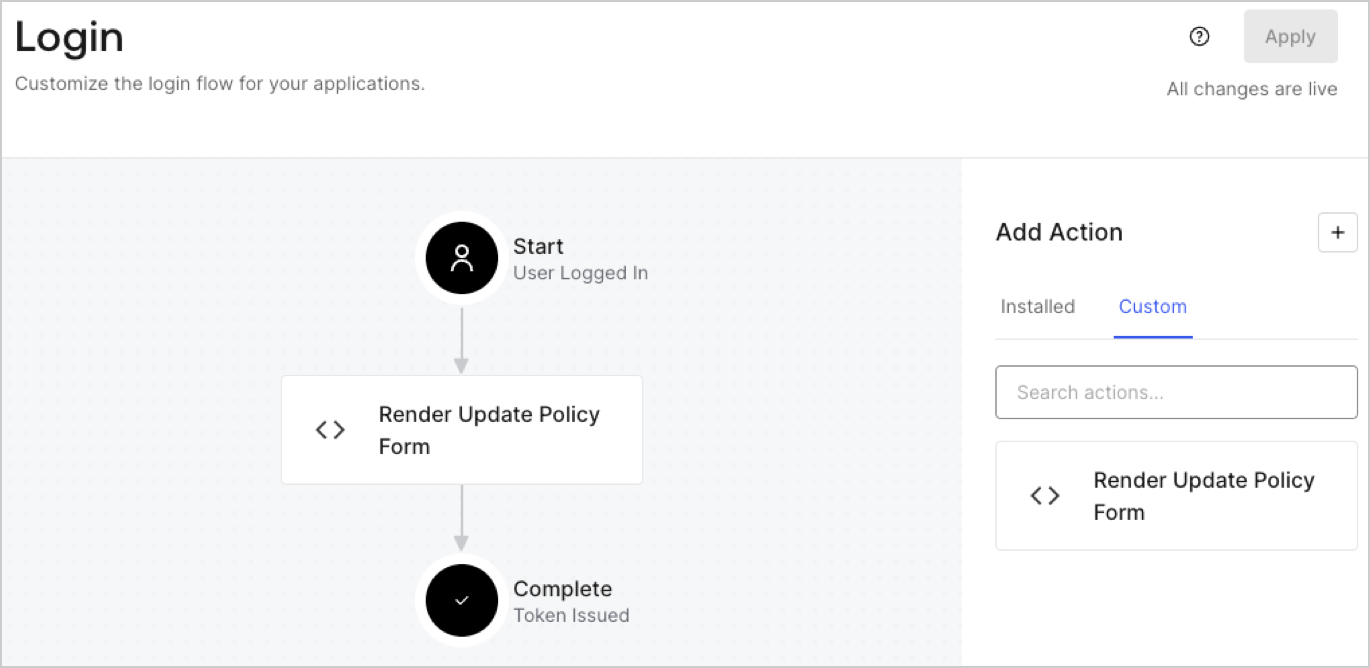
1. Navigate to **Auth0 Dashboard > Actions > Flows > Login.**
2. Select the **+** icon and Select **Build from scratch**:

   * **Name**: Enter `Render Update Policy Form`.
   * **Trigger**: Select `Login / Post Login`.
   * **Runtime**: Select the recommended version.
3. Select **Create**.

To configure the post-login Action:

1. Delete the existing code from the Code editor.
2. Paste the form render code into the Code editor.
3. Edit the code to define the conditional logic that will render the form.

   ```javascript lines theme={null}
   /**
   * @param {Event} event - Details about the user and the context in which they are logging in.
   * @param {PostLoginAPI} api - Interface whose methods can be used to change the behavior of the login.
   */
   exports.onExecutePostLogin = async (event, api) => {
     const FORM_ID = 'REPLACE_WITH_YOUR_FORM_ID';

     if (event.user.app_metadata.privacy_policies !== true) {
       api.prompt.render(FORM_ID);
     }
   }

   exports.onContinuePostLogin = async (event, api) => { }
   ```

   <Callout icon="file-lines" color="#0EA5E9" iconType="regular">
     The example code above will render the form when a user is missing the app metadata `privacy_policies` property.
   </Callout>
4. Select **Deploy.**
5. Drag and Drop the **Render Update Policy Form** Action to the **Login** flow.
   <Frame>
     <img src="https://mintcdn.com/docs-dev-chore-actions-triggers-autoupdate/yqsbn6KFxIs62QZw/docs/images/cdy7uua7fh8z/5TOwDgevZsBqd7yZynUYWU/41ca909dc3007aed4f40ff794a05efa5/postlogin.png?fit=max&auto=format&n=yqsbn6KFxIs62QZw&q=85&s=d5c82e8950e926c6d5032ca36bb69537" alt="Dashboard > Forms > Use Case > Render update policy form login action" data-og-width="1370" width="1370" data-og-height="668" height="668" data-path="docs/images/cdy7uua7fh8z/5TOwDgevZsBqd7yZynUYWU/41ca909dc3007aed4f40ff794a05efa5/postlogin.png" data-optimize="true" data-opv="3" srcset="https://mintcdn.com/docs-dev-chore-actions-triggers-autoupdate/yqsbn6KFxIs62QZw/docs/images/cdy7uua7fh8z/5TOwDgevZsBqd7yZynUYWU/41ca909dc3007aed4f40ff794a05efa5/postlogin.png?w=280&fit=max&auto=format&n=yqsbn6KFxIs62QZw&q=85&s=23e03f36f9a45be3e00858c64e6f4475 280w, https://mintcdn.com/docs-dev-chore-actions-triggers-autoupdate/yqsbn6KFxIs62QZw/docs/images/cdy7uua7fh8z/5TOwDgevZsBqd7yZynUYWU/41ca909dc3007aed4f40ff794a05efa5/postlogin.png?w=560&fit=max&auto=format&n=yqsbn6KFxIs62QZw&q=85&s=a848e639108fe8f9bf494563ae91b485 560w, https://mintcdn.com/docs-dev-chore-actions-triggers-autoupdate/yqsbn6KFxIs62QZw/docs/images/cdy7uua7fh8z/5TOwDgevZsBqd7yZynUYWU/41ca909dc3007aed4f40ff794a05efa5/postlogin.png?w=840&fit=max&auto=format&n=yqsbn6KFxIs62QZw&q=85&s=079a176fb110047292fb8efcf6f80fbb 840w, https://mintcdn.com/docs-dev-chore-actions-triggers-autoupdate/yqsbn6KFxIs62QZw/docs/images/cdy7uua7fh8z/5TOwDgevZsBqd7yZynUYWU/41ca909dc3007aed4f40ff794a05efa5/postlogin.png?w=1100&fit=max&auto=format&n=yqsbn6KFxIs62QZw&q=85&s=a2ee6284f92136cfc02a6cb3b8b77d08 1100w, https://mintcdn.com/docs-dev-chore-actions-triggers-autoupdate/yqsbn6KFxIs62QZw/docs/images/cdy7uua7fh8z/5TOwDgevZsBqd7yZynUYWU/41ca909dc3007aed4f40ff794a05efa5/postlogin.png?w=1650&fit=max&auto=format&n=yqsbn6KFxIs62QZw&q=85&s=36e096cfeee266ac94dcf52aee405c1a 1650w, https://mintcdn.com/docs-dev-chore-actions-triggers-autoupdate/yqsbn6KFxIs62QZw/docs/images/cdy7uua7fh8z/5TOwDgevZsBqd7yZynUYWU/41ca909dc3007aed4f40ff794a05efa5/postlogin.png?w=2500&fit=max&auto=format&n=yqsbn6KFxIs62QZw&q=85&s=4878bbad9ad9b43e145ed0227b1ec2d3 2500w" />
   </Frame>
6. Select **Apply.**

### Test implementation

Test the implementation by following these steps:

1. Log in with an existing user whose app`_metadata` attribute `privacy_policies` does not have a value.
2. The post-login Action in the Login flow will render the form and prompt for acceptance.
3. Select **Auth0 Dashboard > User Management > Users,** locate the user and verify that the `app_metadata` attribute `privacy_policies` contains a `true` value and a timestamp.
