> ## Documentation Index
> Fetch the complete documentation index at: https://docs-dev-chore-actions-triggers-autoupdate.mintlify.site/llms.txt
> Use this file to discover all available pages before exploring further.

> Learn how to configure a progressive profile form using Forms for Actions

# Use Cases: Configure a progressive profile form using Forms

<Card title="Before you start">
  1. Create a [Machine-to-Machine Application](/docs/get-started/auth0-overview/create-applications/machine-to-machine-apps) with the following scopes enabled:

  * `read:users`
  * `update:users`
  * `create:users`
  * `read:users_app_metadata`
  * `update:users_app_metadata`
  * `create:users_app_metadata`

  2. Add a [Vault connection](/docs/customize/forms/vault) using the M2M application credentials.
</Card>

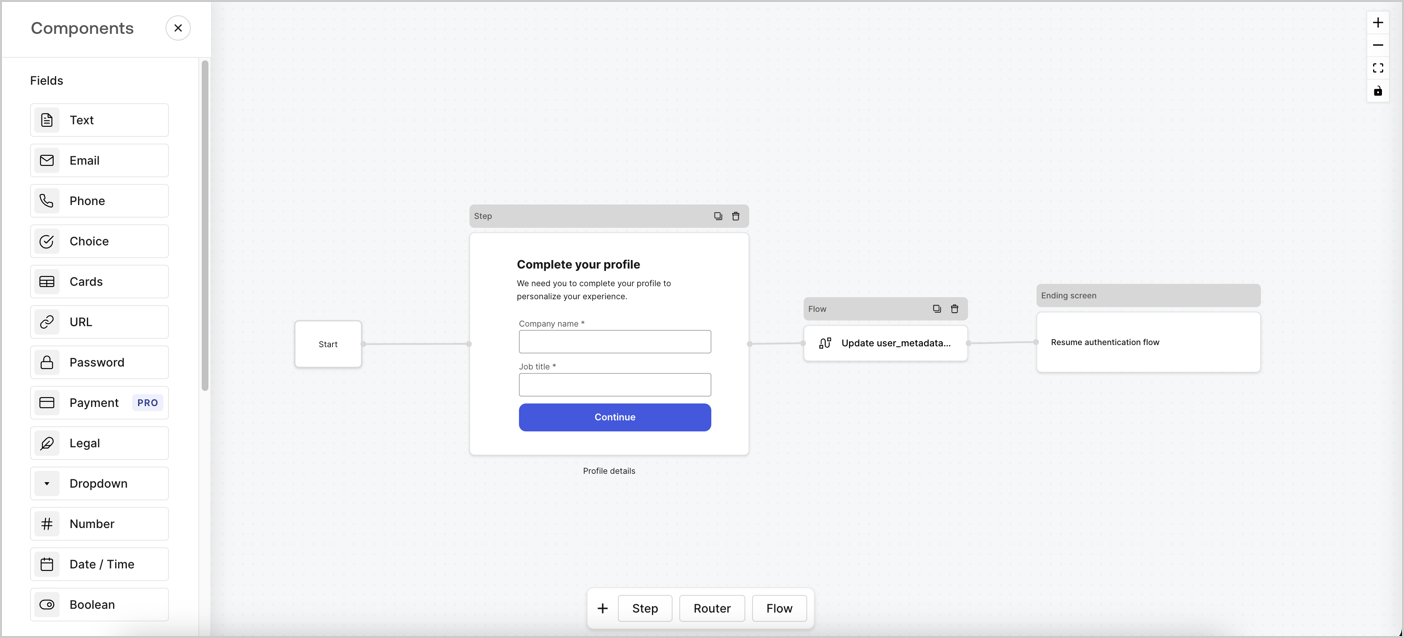
Forms for Actions allows you to create progressive profiling flows to decide when to prompt users to collect missing information, such as company name and job title, and store them as `user_metadata` attributes.
<Frame>
  <img src="https://mintcdn.com/docs-dev-chore-actions-triggers-autoupdate/F6_aLWfReRksrE7h/docs/images/cdy7uua7fh8z/xUx9YmnHvnAqL19JvNtNP/60dae88f893d4ebe8e3523421e960596/Progressive-profle-overview.png?fit=max&auto=format&n=F6_aLWfReRksrE7h&q=85&s=244d0713c6aec07b5576e0215d2d5454" alt="Dashboard > Actions > Forms > Form" data-og-width="1404" width="1404" data-og-height="638" height="638" data-path="docs/images/cdy7uua7fh8z/xUx9YmnHvnAqL19JvNtNP/60dae88f893d4ebe8e3523421e960596/Progressive-profle-overview.png" data-optimize="true" data-opv="3" srcset="https://mintcdn.com/docs-dev-chore-actions-triggers-autoupdate/F6_aLWfReRksrE7h/docs/images/cdy7uua7fh8z/xUx9YmnHvnAqL19JvNtNP/60dae88f893d4ebe8e3523421e960596/Progressive-profle-overview.png?w=280&fit=max&auto=format&n=F6_aLWfReRksrE7h&q=85&s=4e0f88a73c9264d7457a699293b4c954 280w, https://mintcdn.com/docs-dev-chore-actions-triggers-autoupdate/F6_aLWfReRksrE7h/docs/images/cdy7uua7fh8z/xUx9YmnHvnAqL19JvNtNP/60dae88f893d4ebe8e3523421e960596/Progressive-profle-overview.png?w=560&fit=max&auto=format&n=F6_aLWfReRksrE7h&q=85&s=d51ee26b55dd5fd3a90f9465a642deb1 560w, https://mintcdn.com/docs-dev-chore-actions-triggers-autoupdate/F6_aLWfReRksrE7h/docs/images/cdy7uua7fh8z/xUx9YmnHvnAqL19JvNtNP/60dae88f893d4ebe8e3523421e960596/Progressive-profle-overview.png?w=840&fit=max&auto=format&n=F6_aLWfReRksrE7h&q=85&s=8f73027b9225c0803196f8e974b885b0 840w, https://mintcdn.com/docs-dev-chore-actions-triggers-autoupdate/F6_aLWfReRksrE7h/docs/images/cdy7uua7fh8z/xUx9YmnHvnAqL19JvNtNP/60dae88f893d4ebe8e3523421e960596/Progressive-profle-overview.png?w=1100&fit=max&auto=format&n=F6_aLWfReRksrE7h&q=85&s=8fbe6d788e6c932ed6d0195fb146e93e 1100w, https://mintcdn.com/docs-dev-chore-actions-triggers-autoupdate/F6_aLWfReRksrE7h/docs/images/cdy7uua7fh8z/xUx9YmnHvnAqL19JvNtNP/60dae88f893d4ebe8e3523421e960596/Progressive-profle-overview.png?w=1650&fit=max&auto=format&n=F6_aLWfReRksrE7h&q=85&s=d491a079571d8a8ff549ae15db7a7aaa 1650w, https://mintcdn.com/docs-dev-chore-actions-triggers-autoupdate/F6_aLWfReRksrE7h/docs/images/cdy7uua7fh8z/xUx9YmnHvnAqL19JvNtNP/60dae88f893d4ebe8e3523421e960596/Progressive-profle-overview.png?w=2500&fit=max&auto=format&n=F6_aLWfReRksrE7h&q=85&s=6775f6cc670baec0c3d05c06ff3ffba1 2500w" />
</Frame>

The sections below outline how you can create a progressive profile form using nodes and flows, along with steps for adding your form to a [Post Login Action](/docs/customize/actions/explore-triggers/signup-and-login-triggers/login-trigger).

## Create a form from scratch

Follow these steps to create a form to gather information:

1. Open the Form editor by selecting **Auth0 Dashboard > Actions > Forms.**
2. Select **Create Form** > **Start from scratch**.

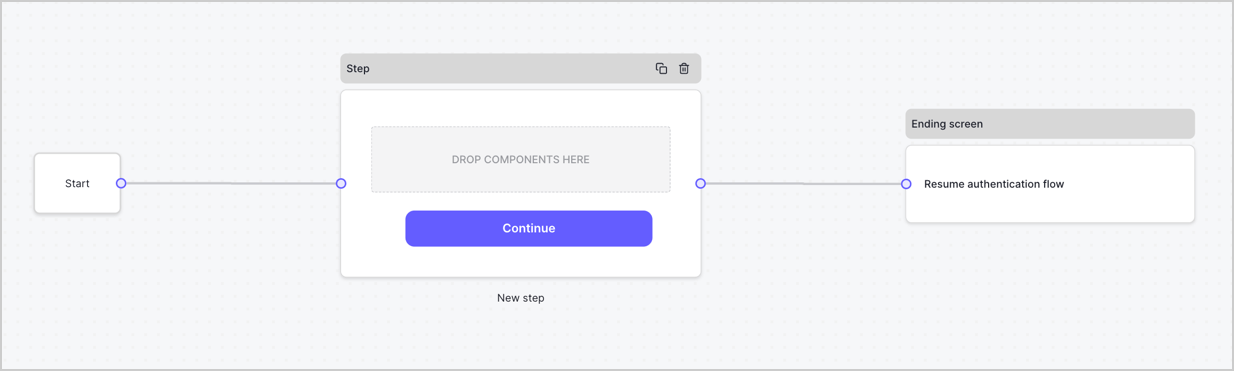
By default, a new form contains a Start node, a Step node, and an Ending screen node.
<Frame>
  <img src="https://mintcdn.com/docs-dev-chore-actions-triggers-autoupdate/khsGGGmvn88p2r99/docs/images/cdy7uua7fh8z/2TZ9jSjgEcARFpULI6hz4R/a4319a1bd482f2ee5cc23100fdb2f42c/New-form-Forms-for-action-use-case.png?fit=max&auto=format&n=khsGGGmvn88p2r99&q=85&s=f1dbf58e4566a5357d594dcaf959bd81" alt="Dashboard > Forms > Use Cases > Form" data-og-width="1234" width="1234" data-og-height="371" height="371" data-path="docs/images/cdy7uua7fh8z/2TZ9jSjgEcARFpULI6hz4R/a4319a1bd482f2ee5cc23100fdb2f42c/New-form-Forms-for-action-use-case.png" data-optimize="true" data-opv="3" srcset="https://mintcdn.com/docs-dev-chore-actions-triggers-autoupdate/khsGGGmvn88p2r99/docs/images/cdy7uua7fh8z/2TZ9jSjgEcARFpULI6hz4R/a4319a1bd482f2ee5cc23100fdb2f42c/New-form-Forms-for-action-use-case.png?w=280&fit=max&auto=format&n=khsGGGmvn88p2r99&q=85&s=4d90bdcaf4dcc6e9387e45af26cf5d3a 280w, https://mintcdn.com/docs-dev-chore-actions-triggers-autoupdate/khsGGGmvn88p2r99/docs/images/cdy7uua7fh8z/2TZ9jSjgEcARFpULI6hz4R/a4319a1bd482f2ee5cc23100fdb2f42c/New-form-Forms-for-action-use-case.png?w=560&fit=max&auto=format&n=khsGGGmvn88p2r99&q=85&s=6cb05b196f2fac0ea170614da0e7a363 560w, https://mintcdn.com/docs-dev-chore-actions-triggers-autoupdate/khsGGGmvn88p2r99/docs/images/cdy7uua7fh8z/2TZ9jSjgEcARFpULI6hz4R/a4319a1bd482f2ee5cc23100fdb2f42c/New-form-Forms-for-action-use-case.png?w=840&fit=max&auto=format&n=khsGGGmvn88p2r99&q=85&s=6cdc16bf26629ecfecbec7b9e9941fa3 840w, https://mintcdn.com/docs-dev-chore-actions-triggers-autoupdate/khsGGGmvn88p2r99/docs/images/cdy7uua7fh8z/2TZ9jSjgEcARFpULI6hz4R/a4319a1bd482f2ee5cc23100fdb2f42c/New-form-Forms-for-action-use-case.png?w=1100&fit=max&auto=format&n=khsGGGmvn88p2r99&q=85&s=87d1315d87789acd3eac975e111504eb 1100w, https://mintcdn.com/docs-dev-chore-actions-triggers-autoupdate/khsGGGmvn88p2r99/docs/images/cdy7uua7fh8z/2TZ9jSjgEcARFpULI6hz4R/a4319a1bd482f2ee5cc23100fdb2f42c/New-form-Forms-for-action-use-case.png?w=1650&fit=max&auto=format&n=khsGGGmvn88p2r99&q=85&s=f933b4a6086fa8588140adbd3e9393cb 1650w, https://mintcdn.com/docs-dev-chore-actions-triggers-autoupdate/khsGGGmvn88p2r99/docs/images/cdy7uua7fh8z/2TZ9jSjgEcARFpULI6hz4R/a4319a1bd482f2ee5cc23100fdb2f42c/New-form-Forms-for-action-use-case.png?w=2500&fit=max&auto=format&n=khsGGGmvn88p2r99&q=85&s=39a6cae92f72c55d09bd854a11133255 2500w" />
</Frame>

### Configure the Step node

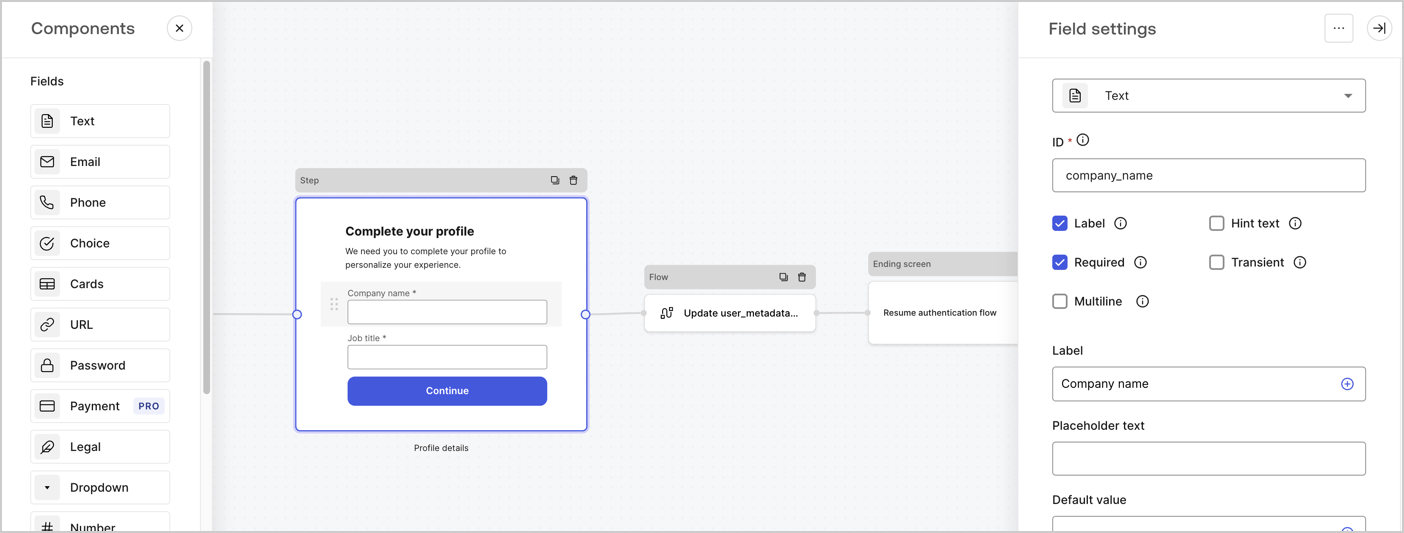
The Step node is the graphical interface visible to users. Add [Fields](/docs/customize/forms/nodes-and-components) to the Step node to collect the user's company name and job title values by following these steps:

1. Drag a **Rich text** field from the **Components menu** into the **Step** node.

   * **Rich text**: Enter a custom message.

     * **Example**: `Complete your profile! We need you to complete your profile to personalize your experience.`
   * Select **Save**.
2. Drag a **Text** field into the **Step** node.

   * **ID**: Enter `company_name`.
   * **Label**: Enable the checkbox.
   * **Label**: Enter `Company name`.
   * **Required**: Enable the checkbox.
   * Select **Save**.
3. Drag a **Text** field into the **Step** node.

   1. **ID**: Enter `job_title`.
   2. **Label**: Enter `Job title`.
   3. **Label**: Enable the checkbox.
   4. **Required**: Enable the checkbox.
   5. Select **Save**.
4. Select **Publish** to save.
<Frame>
  <img src="https://mintcdn.com/docs-dev-chore-actions-triggers-autoupdate/JeCjEaTFYoe6VDKn/docs/images/cdy7uua7fh8z/6H1lRzwKyYioQyQJ9MtIoM/aa248e92fc028a68a5b92ff361a11644/progressive-profile-step.png?fit=max&auto=format&n=JeCjEaTFYoe6VDKn&q=85&s=7713a121ba9a9a7063c85063f5df37cd" alt="Dashboard > Actions > Forms > Form > Step node" data-og-width="1404" width="1404" data-og-height="533" height="533" data-path="docs/images/cdy7uua7fh8z/6H1lRzwKyYioQyQJ9MtIoM/aa248e92fc028a68a5b92ff361a11644/progressive-profile-step.png" data-optimize="true" data-opv="3" srcset="https://mintcdn.com/docs-dev-chore-actions-triggers-autoupdate/JeCjEaTFYoe6VDKn/docs/images/cdy7uua7fh8z/6H1lRzwKyYioQyQJ9MtIoM/aa248e92fc028a68a5b92ff361a11644/progressive-profile-step.png?w=280&fit=max&auto=format&n=JeCjEaTFYoe6VDKn&q=85&s=c62ecb74db4860be9f97362efd6923aa 280w, https://mintcdn.com/docs-dev-chore-actions-triggers-autoupdate/JeCjEaTFYoe6VDKn/docs/images/cdy7uua7fh8z/6H1lRzwKyYioQyQJ9MtIoM/aa248e92fc028a68a5b92ff361a11644/progressive-profile-step.png?w=560&fit=max&auto=format&n=JeCjEaTFYoe6VDKn&q=85&s=a4362dcf89a2bdfff188dd2a144fd8f0 560w, https://mintcdn.com/docs-dev-chore-actions-triggers-autoupdate/JeCjEaTFYoe6VDKn/docs/images/cdy7uua7fh8z/6H1lRzwKyYioQyQJ9MtIoM/aa248e92fc028a68a5b92ff361a11644/progressive-profile-step.png?w=840&fit=max&auto=format&n=JeCjEaTFYoe6VDKn&q=85&s=a3d19f65f325e6f8a12237c9bb34f55d 840w, https://mintcdn.com/docs-dev-chore-actions-triggers-autoupdate/JeCjEaTFYoe6VDKn/docs/images/cdy7uua7fh8z/6H1lRzwKyYioQyQJ9MtIoM/aa248e92fc028a68a5b92ff361a11644/progressive-profile-step.png?w=1100&fit=max&auto=format&n=JeCjEaTFYoe6VDKn&q=85&s=dbe848752878778c97c4ba87860c906e 1100w, https://mintcdn.com/docs-dev-chore-actions-triggers-autoupdate/JeCjEaTFYoe6VDKn/docs/images/cdy7uua7fh8z/6H1lRzwKyYioQyQJ9MtIoM/aa248e92fc028a68a5b92ff361a11644/progressive-profile-step.png?w=1650&fit=max&auto=format&n=JeCjEaTFYoe6VDKn&q=85&s=8323b1236295f3d5ce4a3c043e102f7a 1650w, https://mintcdn.com/docs-dev-chore-actions-triggers-autoupdate/JeCjEaTFYoe6VDKn/docs/images/cdy7uua7fh8z/6H1lRzwKyYioQyQJ9MtIoM/aa248e92fc028a68a5b92ff361a11644/progressive-profile-step.png?w=2500&fit=max&auto=format&n=JeCjEaTFYoe6VDKn&q=85&s=b076a9b0056301cc4dcb1121b7697a7a 2500w" />
</Frame>

### Configure the flow node

Add a **Flow** node after the **Step** node to update the `user_metadata` and resume the authentication flow by following these steps:

1. Select **Flow** from the bottom of the Form editor.
2. Remove the existing link between the **Step** and **Ending Screen** nodes.
3. Select the new **Flow** > **Click to add a flow** > **Create a new flow.**

   * Enter `Update user_metadata` in the **Name** field.
   * Select **Create**.
   * Select **Save**.
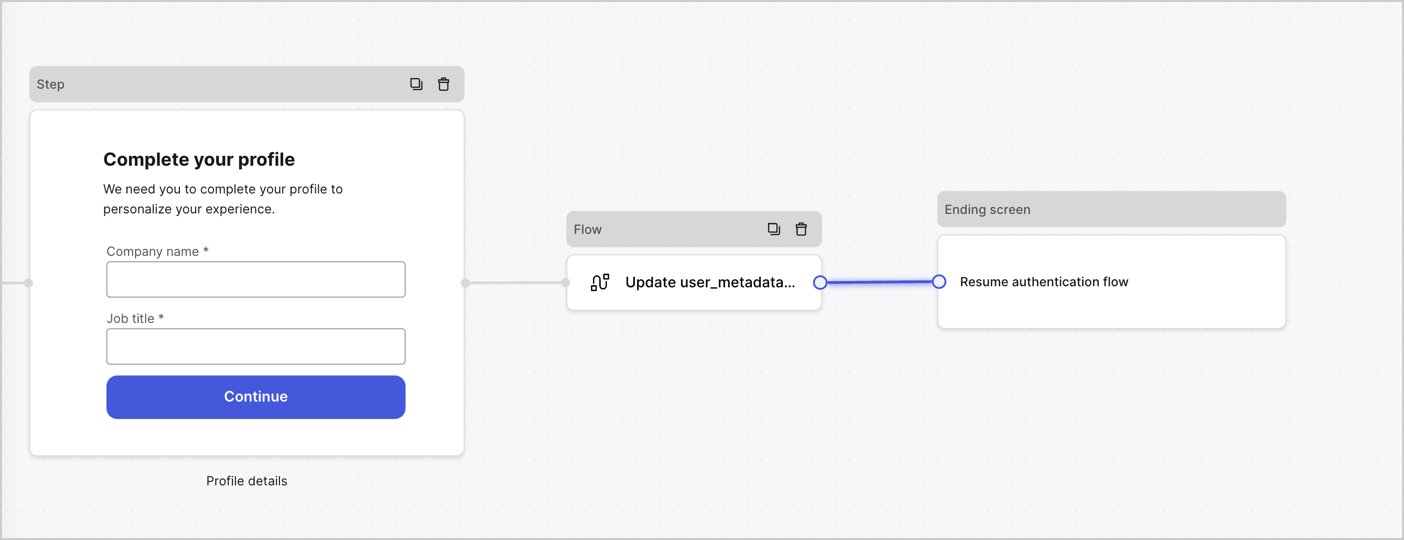
4. Link the **Flow** node to the **Step** and **Ending Screen** nodes as pictured below.
5. Select **Publish** to save.
<Frame>
  <img src="https://mintcdn.com/docs-dev-chore-actions-triggers-autoupdate/R5ivmkXd2l4BLNhc/docs/images/cdy7uua7fh8z/5C91DaWn4LGtJT9BF87ssu/095171d0c452a287c44bfde12fd6d13f/link-nodes.png?fit=max&auto=format&n=R5ivmkXd2l4BLNhc&q=85&s=9e13f3aba3e7ac46cedf5d787144961c" alt="Dashboard > Actions > Forms > Form" data-og-width="1404" width="1404" data-og-height="540" height="540" data-path="docs/images/cdy7uua7fh8z/5C91DaWn4LGtJT9BF87ssu/095171d0c452a287c44bfde12fd6d13f/link-nodes.png" data-optimize="true" data-opv="3" srcset="https://mintcdn.com/docs-dev-chore-actions-triggers-autoupdate/R5ivmkXd2l4BLNhc/docs/images/cdy7uua7fh8z/5C91DaWn4LGtJT9BF87ssu/095171d0c452a287c44bfde12fd6d13f/link-nodes.png?w=280&fit=max&auto=format&n=R5ivmkXd2l4BLNhc&q=85&s=72540e3880573b47c139b13167e99dc3 280w, https://mintcdn.com/docs-dev-chore-actions-triggers-autoupdate/R5ivmkXd2l4BLNhc/docs/images/cdy7uua7fh8z/5C91DaWn4LGtJT9BF87ssu/095171d0c452a287c44bfde12fd6d13f/link-nodes.png?w=560&fit=max&auto=format&n=R5ivmkXd2l4BLNhc&q=85&s=29bcc86dff8340a02202d05b4cd9d3d5 560w, https://mintcdn.com/docs-dev-chore-actions-triggers-autoupdate/R5ivmkXd2l4BLNhc/docs/images/cdy7uua7fh8z/5C91DaWn4LGtJT9BF87ssu/095171d0c452a287c44bfde12fd6d13f/link-nodes.png?w=840&fit=max&auto=format&n=R5ivmkXd2l4BLNhc&q=85&s=07a94b0cdaeb17ef256052cff5df3bbe 840w, https://mintcdn.com/docs-dev-chore-actions-triggers-autoupdate/R5ivmkXd2l4BLNhc/docs/images/cdy7uua7fh8z/5C91DaWn4LGtJT9BF87ssu/095171d0c452a287c44bfde12fd6d13f/link-nodes.png?w=1100&fit=max&auto=format&n=R5ivmkXd2l4BLNhc&q=85&s=ce80cc9a2e75394bf42743dbad093016 1100w, https://mintcdn.com/docs-dev-chore-actions-triggers-autoupdate/R5ivmkXd2l4BLNhc/docs/images/cdy7uua7fh8z/5C91DaWn4LGtJT9BF87ssu/095171d0c452a287c44bfde12fd6d13f/link-nodes.png?w=1650&fit=max&auto=format&n=R5ivmkXd2l4BLNhc&q=85&s=40f24cef65914869e0e0b323eff00cfa 1650w, https://mintcdn.com/docs-dev-chore-actions-triggers-autoupdate/R5ivmkXd2l4BLNhc/docs/images/cdy7uua7fh8z/5C91DaWn4LGtJT9BF87ssu/095171d0c452a287c44bfde12fd6d13f/link-nodes.png?w=2500&fit=max&auto=format&n=R5ivmkXd2l4BLNhc&q=85&s=ca459ad75a281a57e8c03487d11ce292 2500w" />
</Frame>

Add an Auth0 Update user action to the flow by following these steps:

1. Select the **Update user\_metadata** flow, then select the **Edit Flow** to open the Flow editor in a new tab.
2. Below the **Start** action, select the **+** icon to add an **Update user** action. Complete the fields below, then select **Save** to continue.

   * **Connection**: Select from the dropdown the Vault connection to your M2M application.

   * **User ID**: Enter `{{context.user.user_id}}`.

   * **Body**: Copy and paste the following code to update the user\_metadata with `job_title` and `company_name` properties.

     ```json lines theme={null}
     {
        "user_metadata": {
           "job_title": "{{fields.job_title}}",
           "company_name": "{{fields.company_name}}"
        }
     }
     ```

   * Select **Save**.
3. Select **Publish** to save.

<Frame>
  <img src="https://mintcdn.com/docs-dev-chore-actions-triggers-autoupdate/yqsbn6KFxIs62QZw/docs/images/cdy7uua7fh8z/65Jx4W5oIZJyyvA8z4HqIx/0661b1a8ca6361c54fc4fef07ba59f0b/update-user.png?fit=max&auto=format&n=yqsbn6KFxIs62QZw&q=85&s=b4b747b430298f43598bb79513af2814" alt="Dashboard > Actions > Forms > Flows" data-og-width="1404" width="1404" data-og-height="244" height="244" data-path="docs/images/cdy7uua7fh8z/65Jx4W5oIZJyyvA8z4HqIx/0661b1a8ca6361c54fc4fef07ba59f0b/update-user.png" data-optimize="true" data-opv="3" srcset="https://mintcdn.com/docs-dev-chore-actions-triggers-autoupdate/yqsbn6KFxIs62QZw/docs/images/cdy7uua7fh8z/65Jx4W5oIZJyyvA8z4HqIx/0661b1a8ca6361c54fc4fef07ba59f0b/update-user.png?w=280&fit=max&auto=format&n=yqsbn6KFxIs62QZw&q=85&s=7e5dea63a45018ebc9753fb24137270d 280w, https://mintcdn.com/docs-dev-chore-actions-triggers-autoupdate/yqsbn6KFxIs62QZw/docs/images/cdy7uua7fh8z/65Jx4W5oIZJyyvA8z4HqIx/0661b1a8ca6361c54fc4fef07ba59f0b/update-user.png?w=560&fit=max&auto=format&n=yqsbn6KFxIs62QZw&q=85&s=6f11d45e96d884b6a9b6158102c688fe 560w, https://mintcdn.com/docs-dev-chore-actions-triggers-autoupdate/yqsbn6KFxIs62QZw/docs/images/cdy7uua7fh8z/65Jx4W5oIZJyyvA8z4HqIx/0661b1a8ca6361c54fc4fef07ba59f0b/update-user.png?w=840&fit=max&auto=format&n=yqsbn6KFxIs62QZw&q=85&s=aef5dde747f2bda49415fff8a46655d9 840w, https://mintcdn.com/docs-dev-chore-actions-triggers-autoupdate/yqsbn6KFxIs62QZw/docs/images/cdy7uua7fh8z/65Jx4W5oIZJyyvA8z4HqIx/0661b1a8ca6361c54fc4fef07ba59f0b/update-user.png?w=1100&fit=max&auto=format&n=yqsbn6KFxIs62QZw&q=85&s=ce35e4078257a8f4983e2fd97ea98862 1100w, https://mintcdn.com/docs-dev-chore-actions-triggers-autoupdate/yqsbn6KFxIs62QZw/docs/images/cdy7uua7fh8z/65Jx4W5oIZJyyvA8z4HqIx/0661b1a8ca6361c54fc4fef07ba59f0b/update-user.png?w=1650&fit=max&auto=format&n=yqsbn6KFxIs62QZw&q=85&s=0a7b2ecb40c2a24e0f9eabf7831d498d 1650w, https://mintcdn.com/docs-dev-chore-actions-triggers-autoupdate/yqsbn6KFxIs62QZw/docs/images/cdy7uua7fh8z/65Jx4W5oIZJyyvA8z4HqIx/0661b1a8ca6361c54fc4fef07ba59f0b/update-user.png?w=2500&fit=max&auto=format&n=yqsbn6KFxIs62QZw&q=85&s=8203a5fd7f6786552a7a2c26c2c98c9e 2500w" />
</Frame>

### Retrieve the form render code

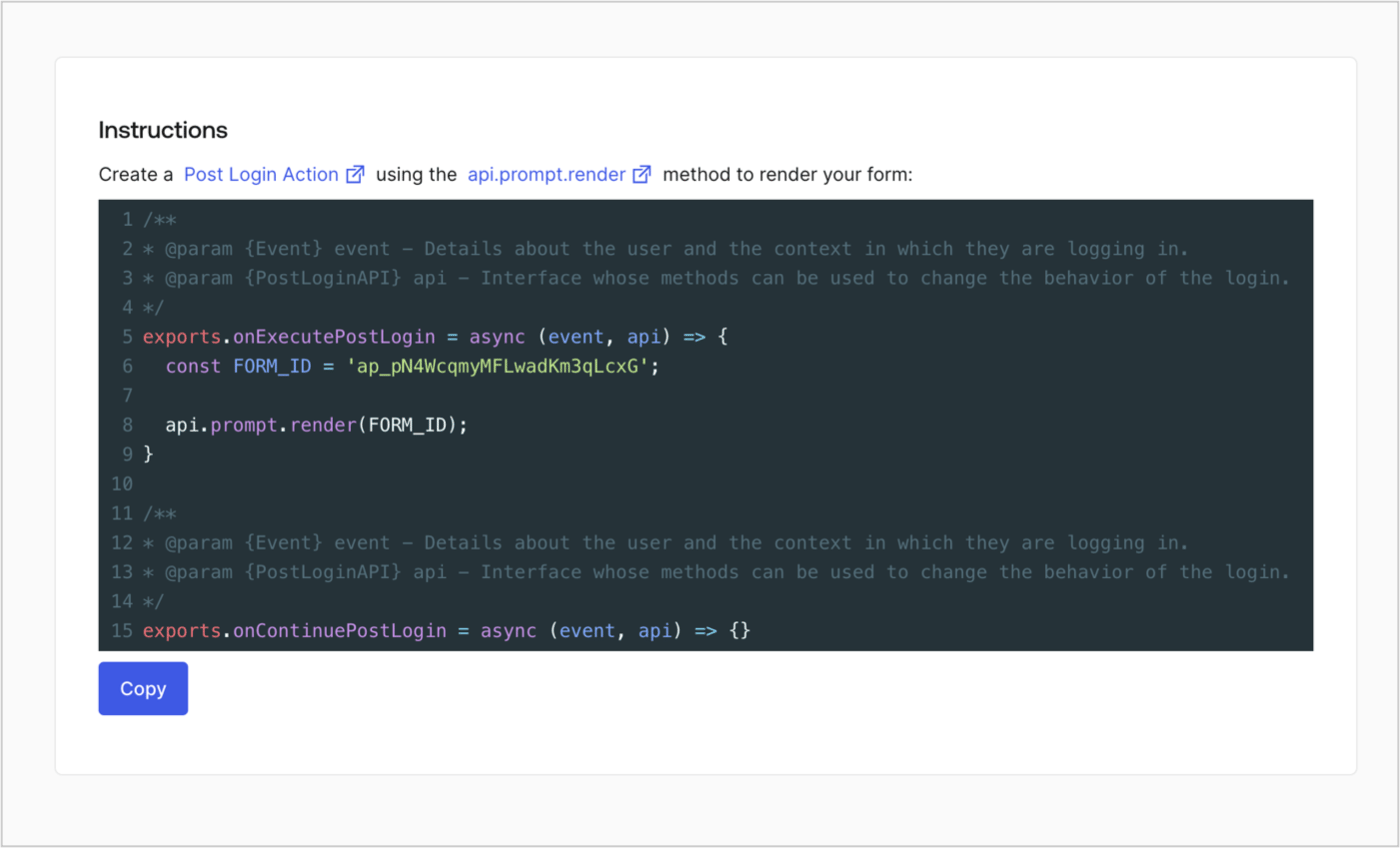
Retrieve the form render code to visually render the form with a custom Post Login Action by following these steps:

* From the Form editor, select **`<> Render`**.
* Select **Copy**.
<Frame>
  <img src="https://mintcdn.com/docs-dev-chore-actions-triggers-autoupdate/Bi6A9RAv5JG5Lq49/docs/images/cdy7uua7fh8z/2EIUzc539sq9lwoTKbjoJv/496a864c0fc44a782c9cadca119dbfb0/embed.png?fit=max&auto=format&n=Bi6A9RAv5JG5Lq49&q=85&s=3c4335e02bd284220dded4b926139d6c" alt="Dashboard > Actions > Forms > Form > Embed" data-og-width="1400" width="1400" data-og-height="848" height="848" data-path="docs/images/cdy7uua7fh8z/2EIUzc539sq9lwoTKbjoJv/496a864c0fc44a782c9cadca119dbfb0/embed.png" data-optimize="true" data-opv="3" srcset="https://mintcdn.com/docs-dev-chore-actions-triggers-autoupdate/Bi6A9RAv5JG5Lq49/docs/images/cdy7uua7fh8z/2EIUzc539sq9lwoTKbjoJv/496a864c0fc44a782c9cadca119dbfb0/embed.png?w=280&fit=max&auto=format&n=Bi6A9RAv5JG5Lq49&q=85&s=ac4eb77fb3f87cb6a1d1d22ac2746dde 280w, https://mintcdn.com/docs-dev-chore-actions-triggers-autoupdate/Bi6A9RAv5JG5Lq49/docs/images/cdy7uua7fh8z/2EIUzc539sq9lwoTKbjoJv/496a864c0fc44a782c9cadca119dbfb0/embed.png?w=560&fit=max&auto=format&n=Bi6A9RAv5JG5Lq49&q=85&s=b58280d124d56bf41ceff80a3a9b4dee 560w, https://mintcdn.com/docs-dev-chore-actions-triggers-autoupdate/Bi6A9RAv5JG5Lq49/docs/images/cdy7uua7fh8z/2EIUzc539sq9lwoTKbjoJv/496a864c0fc44a782c9cadca119dbfb0/embed.png?w=840&fit=max&auto=format&n=Bi6A9RAv5JG5Lq49&q=85&s=4802c81436ac65a14015a0ceb31e05d3 840w, https://mintcdn.com/docs-dev-chore-actions-triggers-autoupdate/Bi6A9RAv5JG5Lq49/docs/images/cdy7uua7fh8z/2EIUzc539sq9lwoTKbjoJv/496a864c0fc44a782c9cadca119dbfb0/embed.png?w=1100&fit=max&auto=format&n=Bi6A9RAv5JG5Lq49&q=85&s=df969fdaa17e2c6512fc8a4d0f0b7496 1100w, https://mintcdn.com/docs-dev-chore-actions-triggers-autoupdate/Bi6A9RAv5JG5Lq49/docs/images/cdy7uua7fh8z/2EIUzc539sq9lwoTKbjoJv/496a864c0fc44a782c9cadca119dbfb0/embed.png?w=1650&fit=max&auto=format&n=Bi6A9RAv5JG5Lq49&q=85&s=b20867730bed25b34eb175b63663dd77 1650w, https://mintcdn.com/docs-dev-chore-actions-triggers-autoupdate/Bi6A9RAv5JG5Lq49/docs/images/cdy7uua7fh8z/2EIUzc539sq9lwoTKbjoJv/496a864c0fc44a782c9cadca119dbfb0/embed.png?w=2500&fit=max&auto=format&n=Bi6A9RAv5JG5Lq49&q=85&s=da99087abad19e7d8bfda8387a68f78f 2500w" />
</Frame>

## Create a Post Login Action

Create a post-login Action to render your form by following these steps:

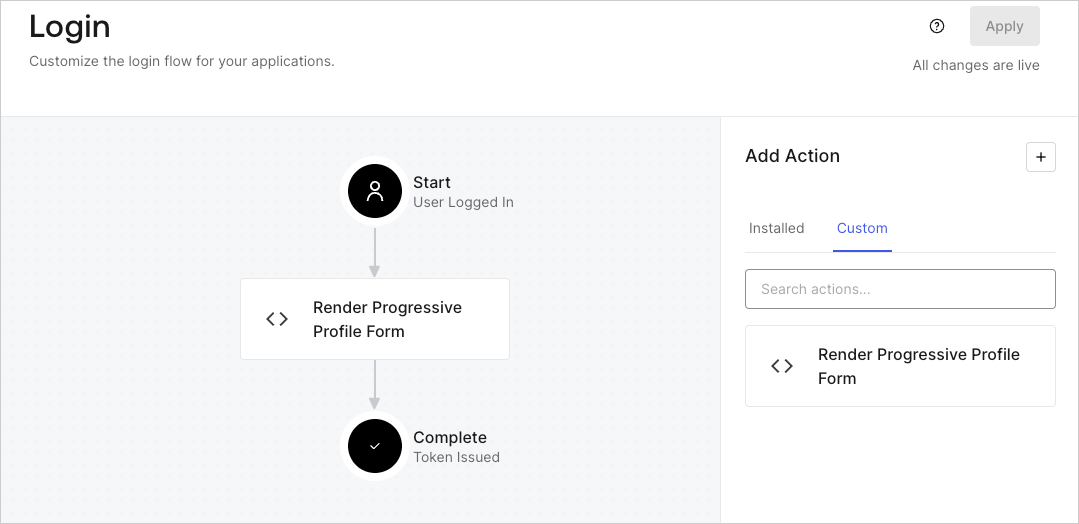
1. Navigate to **Auth0 Dashboard > Actions > Flows > Login.**
2. Select the **+** icon and select **Build from scratch**:

   * **Name**: Enter `Render Progressive Profile Form`.
   * **Trigger**: Select `Login / Post Login`.
   * **Runtime**: Select the recommended version.
3. Select **Create**.

To configure the post-login Action:

1. Delete the existing code from the Code editor.
2. Paste the form embed code into the Code editor.
3. Edit the code to define the conditional logic that will render the form.

   ```javascript lines theme={null}
   /**
   * @param {Event} event - Details about the user and the context in which they are logging in.
   * @param {PostLoginAPI} api - Interface whose methods can be used to change the behavior of the login.
   */
   exports.onExecutePostLogin = async (event, api) => {
     const FORM_ID = 'REPLACE_WITH_YOUR_FORM_ID';

     if (
       event.stats.logins_count > 2 &&
       !event.user.user_metadata.company_name &&
       !event.user.user_metadata.job_title
     ) {
       api.prompt.render(FORM_ID);
     }
   }

   exports.onContinuePostLogin = async (event, api) => { }
   ```

   <Callout icon="file-lines" color="#0EA5E9" iconType="regular">
     The example code above will render the form when a user has a login count > 2 and is missing the user metadata company\_name and job\_title properties.
   </Callout>
4. Select **Deploy.**
5. Drag and Drop the **Render Progressive Profile Form** Action to the **Login** flow.
   <Frame>
     <img src="https://mintcdn.com/docs-dev-chore-actions-triggers-autoupdate/lnAPXLzH3RcvNR6L/docs/images/cdy7uua7fh8z/1QjjZdpTqTxx012UDN4xk9/99fba5ef4068a5688f1762eea7f42976/renderprogessiveprofile.png?fit=max&auto=format&n=lnAPXLzH3RcvNR6L&q=85&s=7be8888087b395a8a3f73acbd56ce912" alt="Dashboard > Forms > Use Cases Progressive Profile Login Action" data-og-width="1079" width="1079" data-og-height="524" height="524" data-path="docs/images/cdy7uua7fh8z/1QjjZdpTqTxx012UDN4xk9/99fba5ef4068a5688f1762eea7f42976/renderprogessiveprofile.png" data-optimize="true" data-opv="3" srcset="https://mintcdn.com/docs-dev-chore-actions-triggers-autoupdate/lnAPXLzH3RcvNR6L/docs/images/cdy7uua7fh8z/1QjjZdpTqTxx012UDN4xk9/99fba5ef4068a5688f1762eea7f42976/renderprogessiveprofile.png?w=280&fit=max&auto=format&n=lnAPXLzH3RcvNR6L&q=85&s=b386f4a2b77e29cd95abf767cb84f88c 280w, https://mintcdn.com/docs-dev-chore-actions-triggers-autoupdate/lnAPXLzH3RcvNR6L/docs/images/cdy7uua7fh8z/1QjjZdpTqTxx012UDN4xk9/99fba5ef4068a5688f1762eea7f42976/renderprogessiveprofile.png?w=560&fit=max&auto=format&n=lnAPXLzH3RcvNR6L&q=85&s=242099189ce982d06961206b131200a1 560w, https://mintcdn.com/docs-dev-chore-actions-triggers-autoupdate/lnAPXLzH3RcvNR6L/docs/images/cdy7uua7fh8z/1QjjZdpTqTxx012UDN4xk9/99fba5ef4068a5688f1762eea7f42976/renderprogessiveprofile.png?w=840&fit=max&auto=format&n=lnAPXLzH3RcvNR6L&q=85&s=d3f5774355bea1aea9e8f48c0decbf8a 840w, https://mintcdn.com/docs-dev-chore-actions-triggers-autoupdate/lnAPXLzH3RcvNR6L/docs/images/cdy7uua7fh8z/1QjjZdpTqTxx012UDN4xk9/99fba5ef4068a5688f1762eea7f42976/renderprogessiveprofile.png?w=1100&fit=max&auto=format&n=lnAPXLzH3RcvNR6L&q=85&s=c79975d83301a6f75df5efdd0e7211e6 1100w, https://mintcdn.com/docs-dev-chore-actions-triggers-autoupdate/lnAPXLzH3RcvNR6L/docs/images/cdy7uua7fh8z/1QjjZdpTqTxx012UDN4xk9/99fba5ef4068a5688f1762eea7f42976/renderprogessiveprofile.png?w=1650&fit=max&auto=format&n=lnAPXLzH3RcvNR6L&q=85&s=274ae2d1a62cc7011b346a3adc594ab1 1650w, https://mintcdn.com/docs-dev-chore-actions-triggers-autoupdate/lnAPXLzH3RcvNR6L/docs/images/cdy7uua7fh8z/1QjjZdpTqTxx012UDN4xk9/99fba5ef4068a5688f1762eea7f42976/renderprogessiveprofile.png?w=2500&fit=max&auto=format&n=lnAPXLzH3RcvNR6L&q=85&s=2eef0fde5e3236efcb37d14f5929074d 2500w" />
   </Frame>
6. Select **Apply**.

### Test implementation

Test the implementation by following these steps:

1. Log in with an existing user whose login count is greater than 2 and their `user_metadata` attributes `company_name` and `job_title` have no values.
2. The post-login action in the Login flow will render the form and prompt for the information.
3. Select **Auth0 Dashboard > User Management > Users,** locate the user and verify that the `user_metadata` attributes `company_name` and `job_title` contain information.
